> ## Documentation Index
> Fetch the complete documentation index at: https://help.elationhealth.com/llms.txt
> Use this file to discover all available pages before exploring further.
# Elation Patient Passport Guide - Managing Passport invitations
**For practice staff** · 5 min read
You'll need staff-level access to patient charts in Elation EHR. Use the scenario cards below to jump directly to the workflow that matches your situation.
## Overview
### Invitation Methods
For flexibility, there are several ways to invite patients to the patient portal. Options include:
* Sending a stand-alone invitation.
* Sending an invitation while sharing records or communications.
* Sending an invitation automatically after the patient books an appointment on the Booking Site.
* Sending invitations to multiple patients at a time.
It is important to know if the patient's email address is already linked to an active patient portal account as their invitation will differ:
* If the patient's email is not linked to an active patient portal account, your invitation will prompt the patient to register for a new account.
* If the patient's email address is linked to an active patient portal account (e.g., they have an account with another Elation doctor or for a family member), your invitation will prompt them to link the new account to their existing one.
Send a first-time invitation to a patient without an existing account
Link a new chart to a patient portal account that is already active
[Grant or change access for a parent, guardian, or caregiver](https://help.elationhealth.com/articles/patient-passport-family-and-friends-access)
Send invitations to multiple patients at once
### Patient's Invite Experience
Patients need an invitation from your practice to register for a patient portal account. The invitation is sent to the patient's email. When the patient clicks the link, they enter their name, create a password, and agree to the Terms of Service. After registering, they complete a short verification step to confirm their relationship to the chart and set their notification preferences.
A phone number is not required to send an invitation. Patients can optionally add a phone number after registration from their **Account Settings**.
### The invitation email
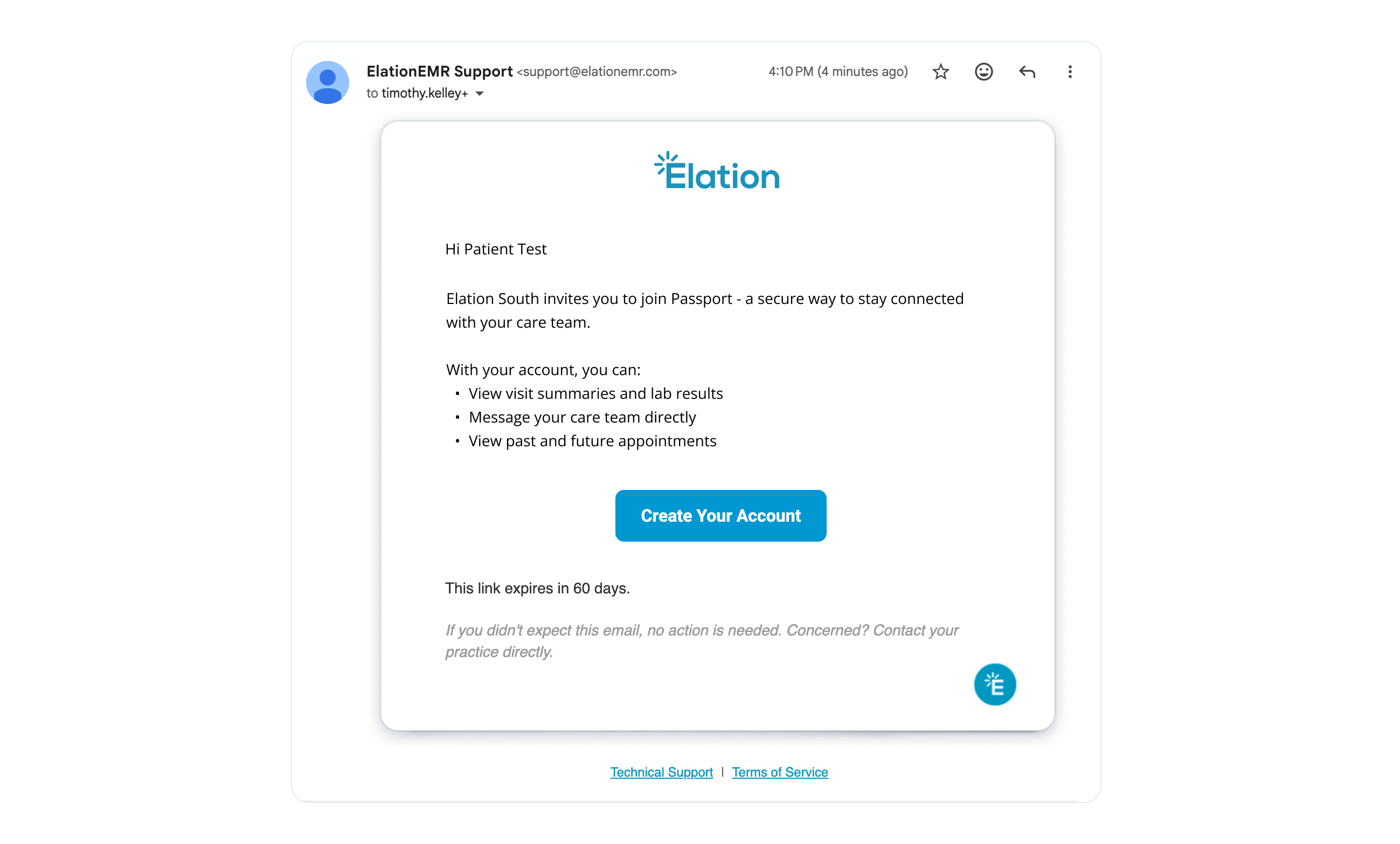
When you send a patient portal invitation, the patient receives an email from Elation. Here is what they will see:\
\
**From**: ElationEMR Support
**Subject line:** Passport Account Registration
**Email body:** Hi \[Patient or proxy name] Elation South invites you to join Passport - a secure way to stay connected with your care team:
 ## General Workflow Instructions
### Inviting patients one by one to the patient portal for the first time
#### Sending a stand-alone invitation
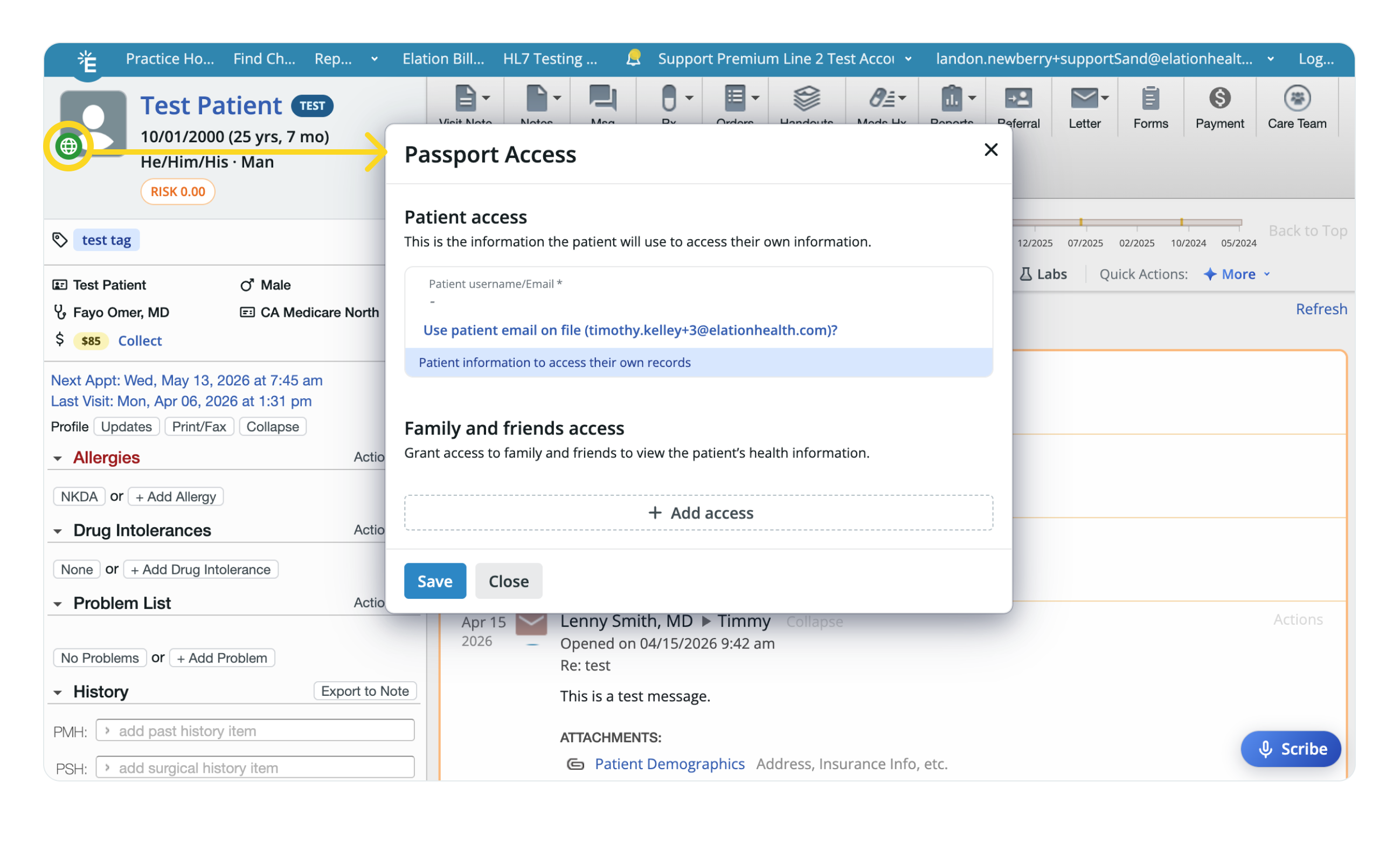
In the patient's chart, click on the **Passport** icon (the globe) at the corner of the patient's profile picture.
Select who you are granting access to:
* **Patient access** — Enter the patient's email address, or click **Use patient email on file...** if one is already stored in their demographics.
* **Family and friends access** — Click **+ Add access**, then enter the person's **First name**, **Last name**, and **Email**. See the [Granting Family and Friends Access guide](https://help.elationhealth.com/articles/patient-passport-family-and-friends-access) for additional details.
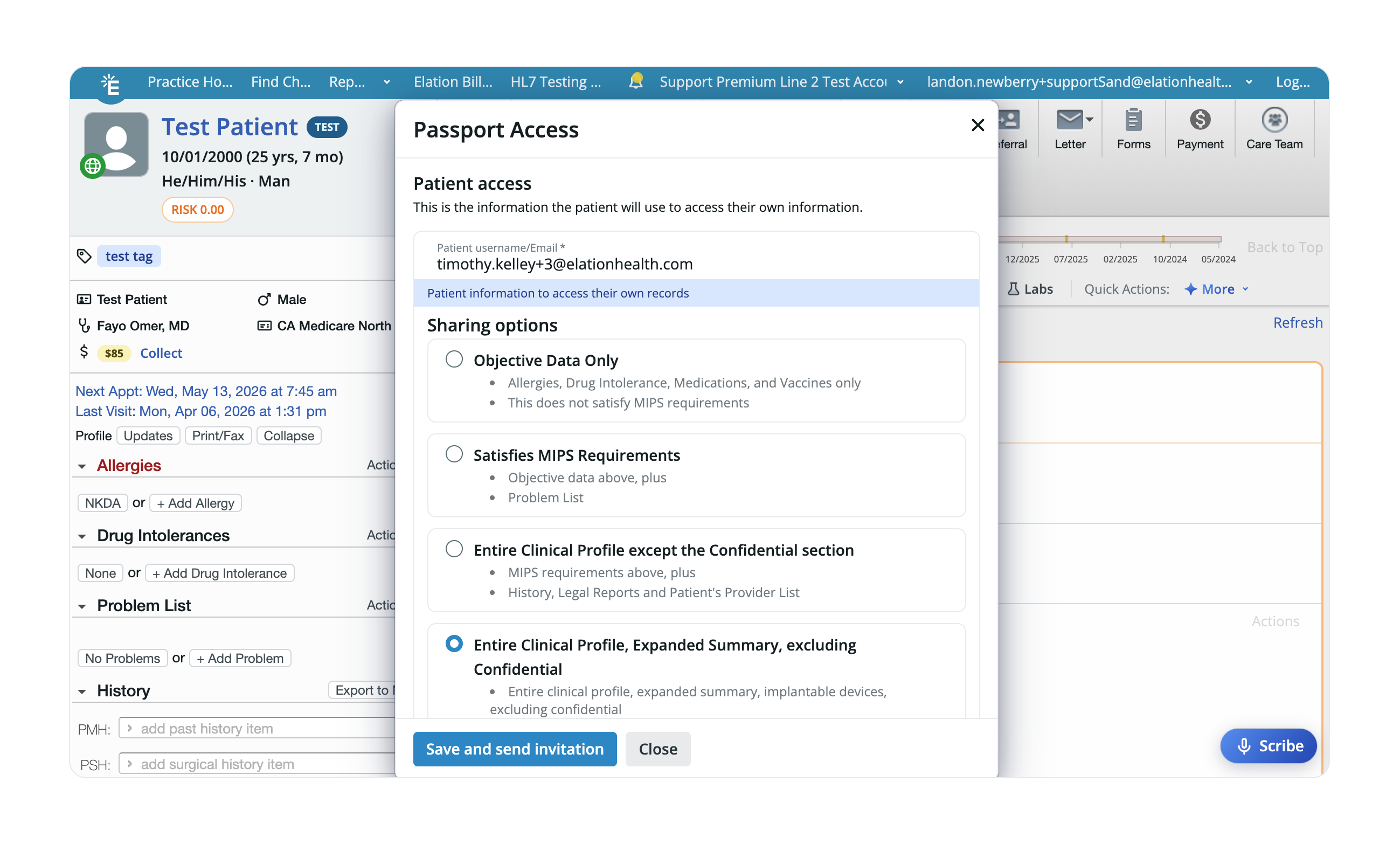
Review **Sharing Options** to adjust how much of the Clinical Profile the person can see. By default, it uses the settings configured under **Patient Sharing Defaults**.
Click **Save & send invitation**.
## General Workflow Instructions
### Inviting patients one by one to the patient portal for the first time
#### Sending a stand-alone invitation
In the patient's chart, click on the **Passport** icon (the globe) at the corner of the patient's profile picture.
Select who you are granting access to:
* **Patient access** — Enter the patient's email address, or click **Use patient email on file...** if one is already stored in their demographics.
* **Family and friends access** — Click **+ Add access**, then enter the person's **First name**, **Last name**, and **Email**. See the [Granting Family and Friends Access guide](https://help.elationhealth.com/articles/patient-passport-family-and-friends-access) for additional details.
Review **Sharing Options** to adjust how much of the Clinical Profile the person can see. By default, it uses the settings configured under **Patient Sharing Defaults**.
Click **Save & send invitation**.
 #### Inviting patients through a Patient Letter
When you send a Patient Letter to a patient who doesn't have a patient portal account yet, you'll be prompted to invite them to register. This will allow them to access the letter and other information you've sent.
### Managing invitations
#### Checking the status of invitations
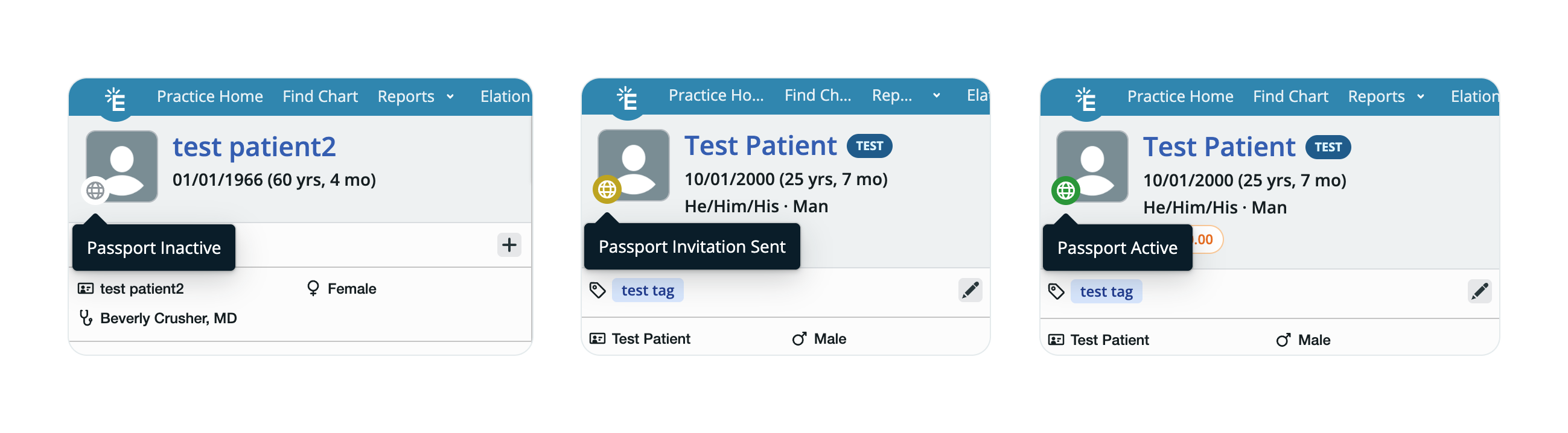
Here are the possible statuses for a patient portal invitation:
* Green = Registered/active
* Yellow = Invited but not registered
* Gray = Not invited
#### Inviting patients through a Patient Letter
When you send a Patient Letter to a patient who doesn't have a patient portal account yet, you'll be prompted to invite them to register. This will allow them to access the letter and other information you've sent.
### Managing invitations
#### Checking the status of invitations
Here are the possible statuses for a patient portal invitation:
* Green = Registered/active
* Yellow = Invited but not registered
* Gray = Not invited
 #### Re-sending invitations
In the patient's chart, click on the Passport icon (the globe) at the corner of the patient's profile picture.
Click **Resend** next to the patient's name.
Click **Save**.
#### Re-sending invitations
In the patient's chart, click on the Passport icon (the globe) at the corner of the patient's profile picture.
Click **Resend** next to the patient's name.
Click **Save**.
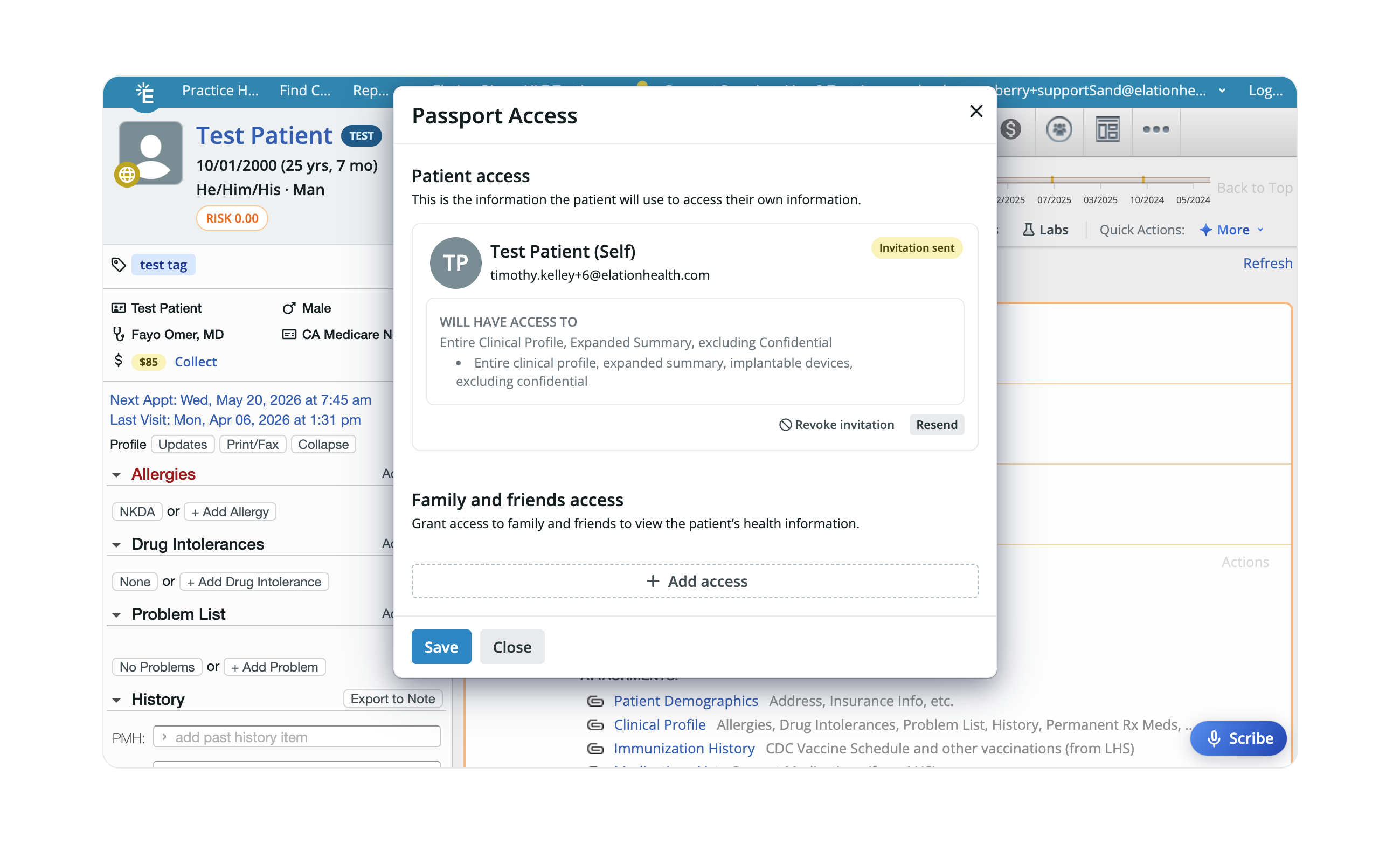 #### Revoking invitations
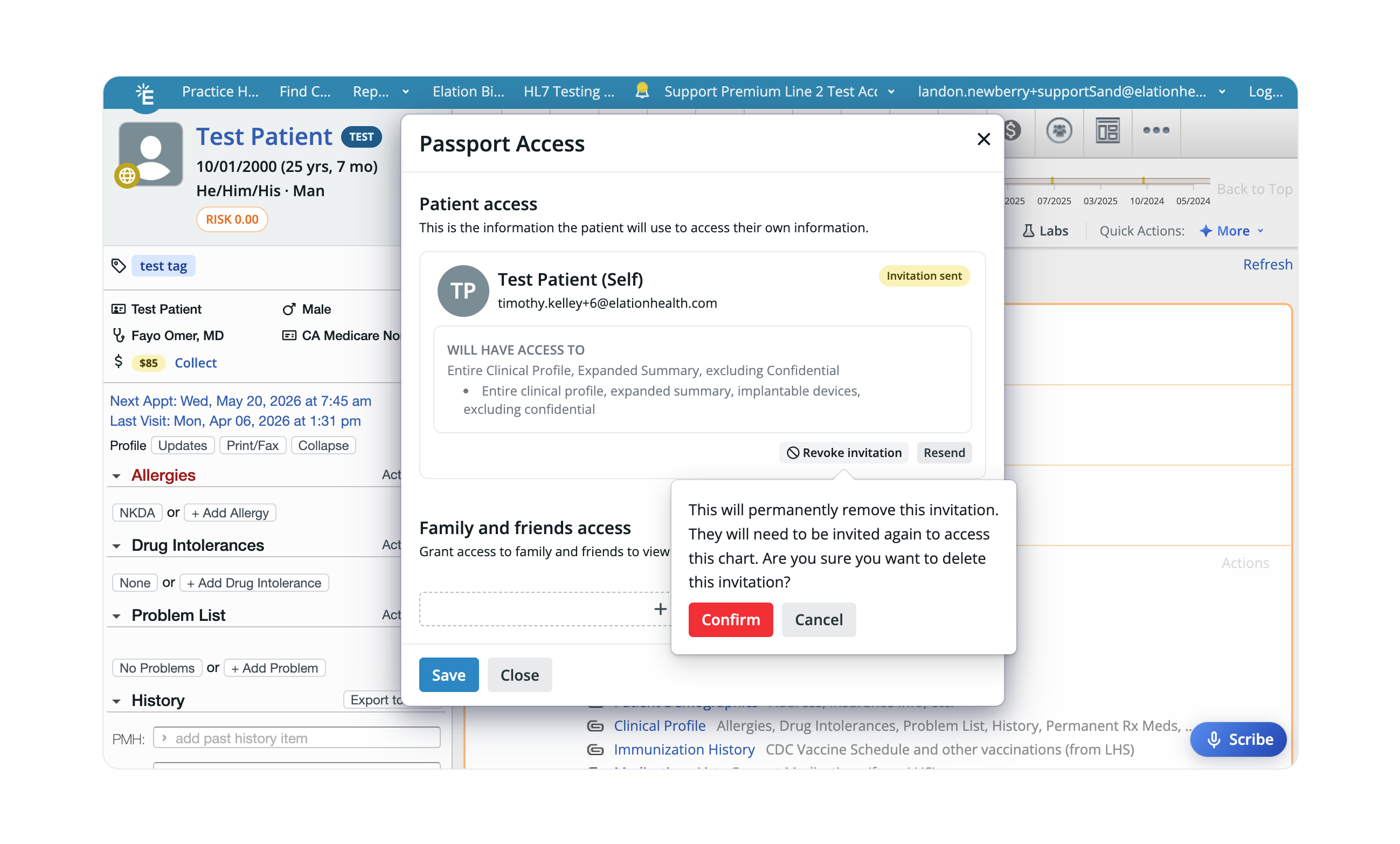
To cancel or revoke a patient portal invitation:
In the patient's chart, click on the Passport icon (the globe) at the corner of the patient's profile picture.
Click **Revoke invitation** next to the patient's name.
Click **Save**.
#### Revoking invitations
To cancel or revoke a patient portal invitation:
In the patient's chart, click on the Passport icon (the globe) at the corner of the patient's profile picture.
Click **Revoke invitation** next to the patient's name.
Click **Save**.
 ### Disabling a patient portal account
In the patient's chart, click on the Passport icon (the globe) at the corner of the patient's profile picture.
Click **Disable access** next to the patient's name.
Click **Save**.
### Disabling a patient portal account
In the patient's chart, click on the Passport icon (the globe) at the corner of the patient's profile picture.
Click **Disable access** next to the patient's name.
Click **Save**.
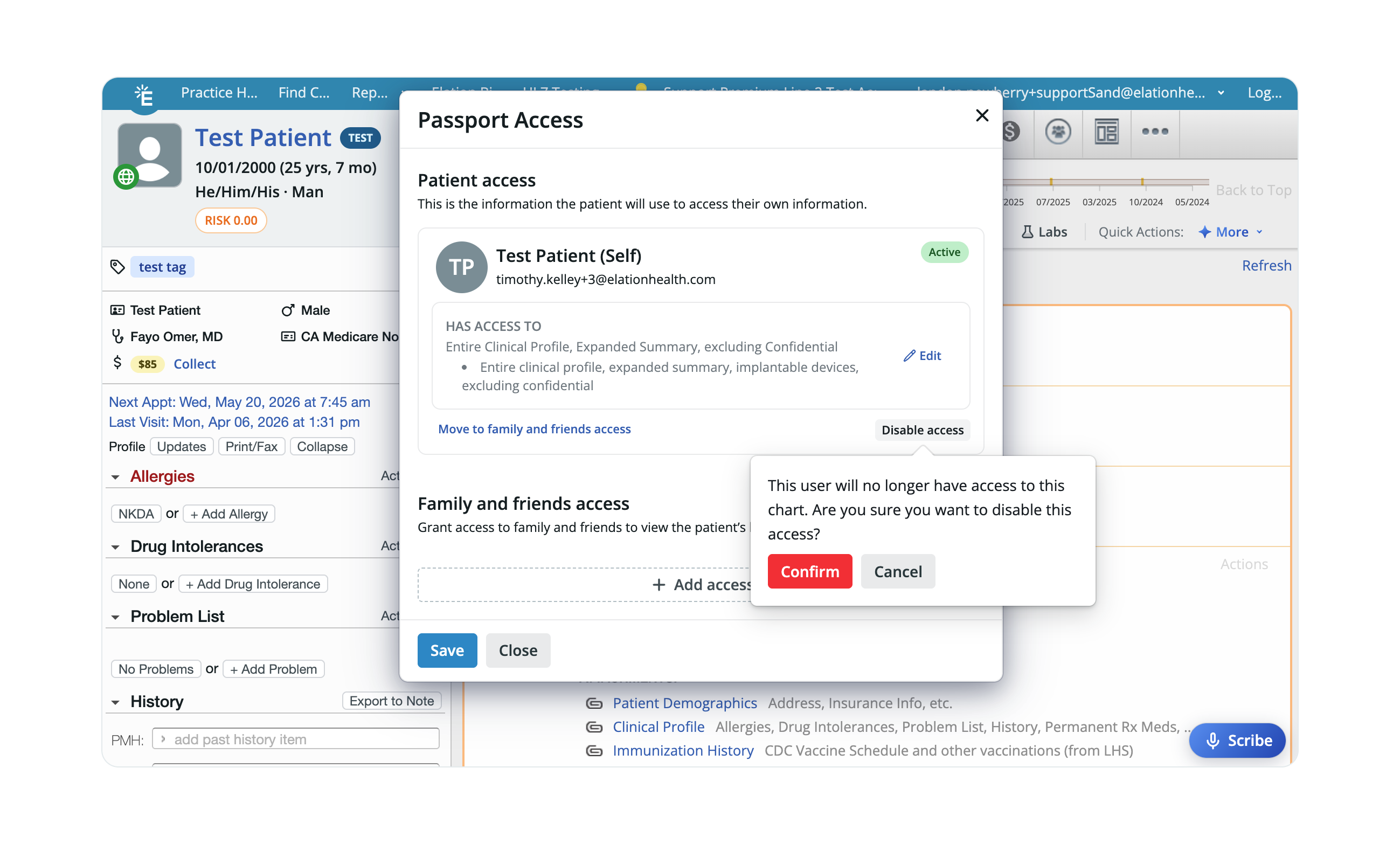 The patient can no longer access their patient portal account until you invite them again.
### Re-enabling a patient portal account
To re-enable an account, simply send the patient a new invitation, and they can register again.
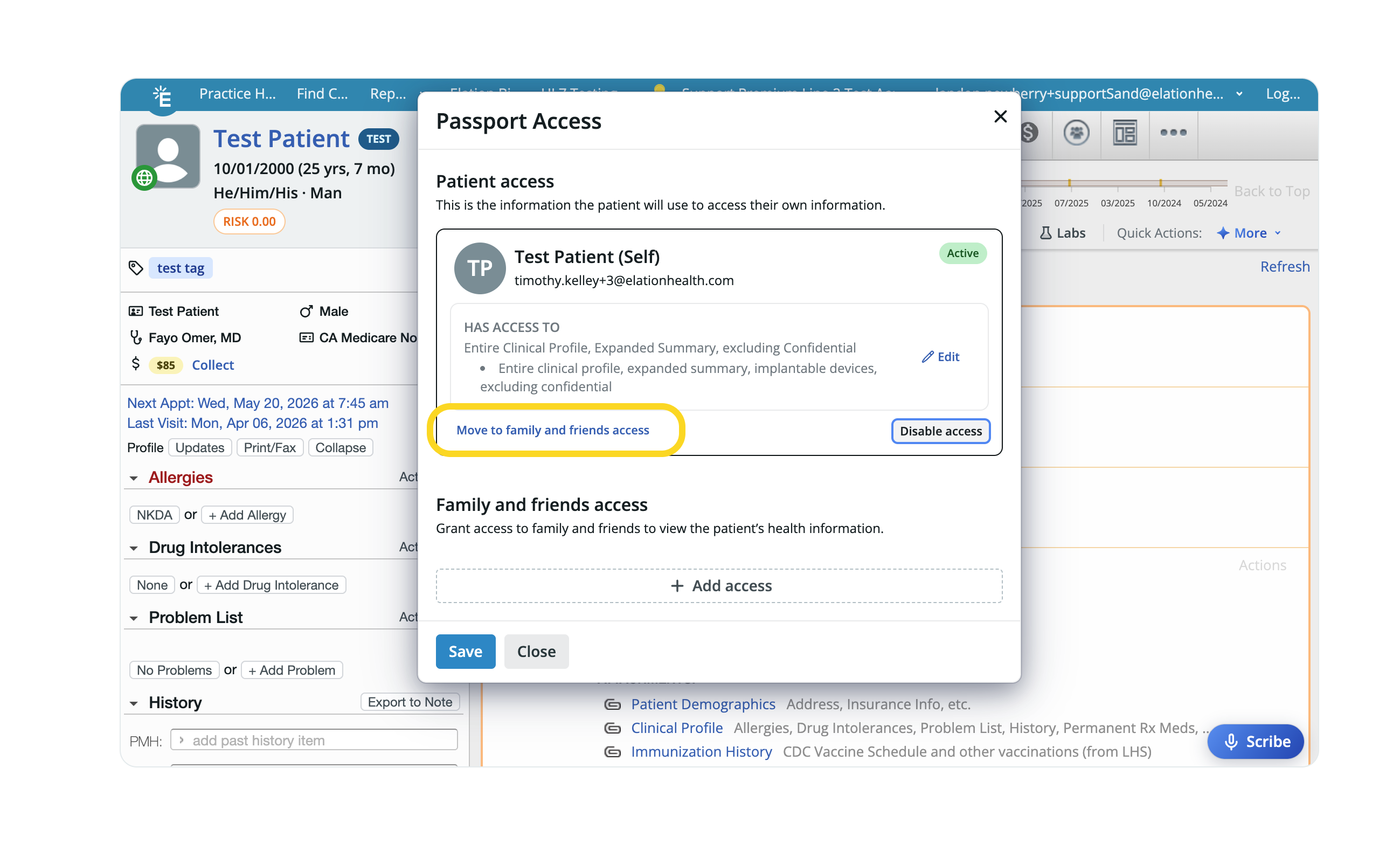
### Switching a patient's access to family and friends access
If a patient's account was originally set up as individual patient access and needs to be changed to family and friends access — for example, a parent who should be managing a child's chart — update the access type from the Passport Access window by clicking **Move to family & friend access**. See the [Granting Family and Friends Access guide](https://help.elationhealth.com/articles/patient-passport-family-and-friends-access-staff) for additional details about family and friend access.
The patient can no longer access their patient portal account until you invite them again.
### Re-enabling a patient portal account
To re-enable an account, simply send the patient a new invitation, and they can register again.
### Switching a patient's access to family and friends access
If a patient's account was originally set up as individual patient access and needs to be changed to family and friends access — for example, a parent who should be managing a child's chart — update the access type from the Passport Access window by clicking **Move to family & friend access**. See the [Granting Family and Friends Access guide](https://help.elationhealth.com/articles/patient-passport-family-and-friends-access-staff) for additional details about family and friend access.
 ### Switching a family or friend’s access to patient access
If an account was originally set up as family and friends access and needs to be changed to individual patient access — for example, a patient who was initially invited through a caregiver’s account but now needs their own direct access — update the access type from the Passport Access window by clicking **Move to patient access**.
## Advanced Invitation Workflows
### Inviting patients in bulk
[Click here for instructions on how to invite patients in bulk](/articles/introduction-to-bulk-letters).
### Inviting patients through booking an appointment through the Booking Site
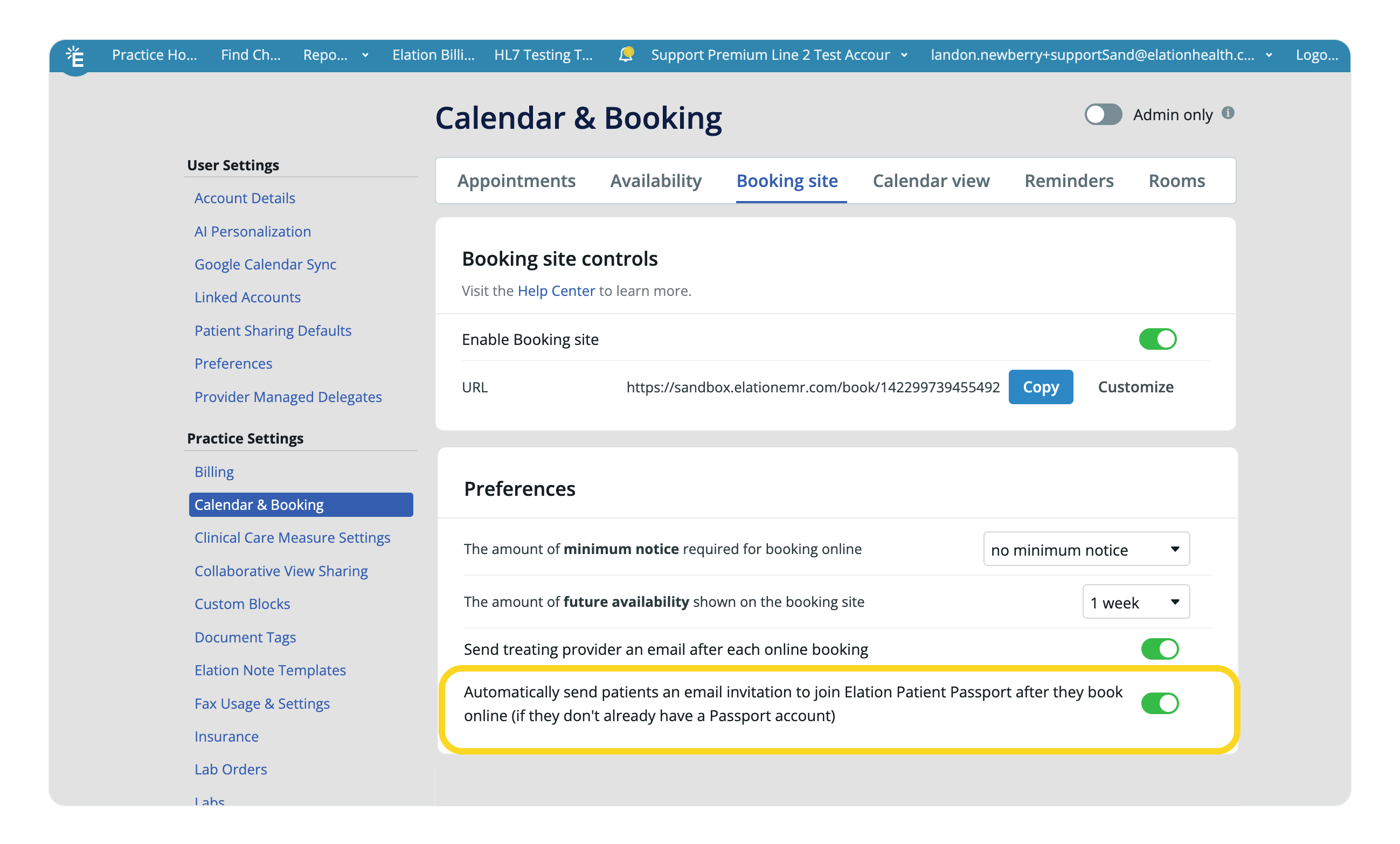
If you use the Booking Site and enable the **Automatically send patients an email invitation to join Elation Patient Passport after they book online** setting, any patient who books an appointment and doesn't have a patient portal account will automatically receive an invitation.
### Switching a family or friend’s access to patient access
If an account was originally set up as family and friends access and needs to be changed to individual patient access — for example, a patient who was initially invited through a caregiver’s account but now needs their own direct access — update the access type from the Passport Access window by clicking **Move to patient access**.
## Advanced Invitation Workflows
### Inviting patients in bulk
[Click here for instructions on how to invite patients in bulk](/articles/introduction-to-bulk-letters).
### Inviting patients through booking an appointment through the Booking Site
If you use the Booking Site and enable the **Automatically send patients an email invitation to join Elation Patient Passport after they book online** setting, any patient who books an appointment and doesn't have a patient portal account will automatically receive an invitation.
 If many of your patients plan to use one patient portal account to access multiple charts—such as parents managing children's records or caregivers managing relatives' charts—we recommend leaving this setting off so that your staff can confirm the use case for the account with the patients before sending an invitation.
### Inviting patients to link their patient passport accounts
If the patient's email is already linked to a patient portal account (e.g., they have an account with another Elation doctor or for a family member), your invitation will prompt them to link the new account to their existing one.
Even if the patient now sees you as their current provider, they may still see records from their previous practice when logging in to their patient portal account. Ask the patient to switch account views from the portal as needed. [Click here for patient-facing instructions about switching between charts](/articles/what-patient-passport-messaging-looks-like-to-a-patient#switching-between-linked-accounts).
Consider mentioning this behavior during onboarding for patients who previously used the portal with another practice. This helps set expectations and reduces confusion when they first log in.
## Invitation Scenarios
Use this table to identify the correct workflow for common situations you may encounter when inviting patients.
| **Scenario** | **Staff Actions** | **Patient Actions** | **Additional Considerations** |
| ------------------------------------------------------------------------------------------------------------------ | ------------------------------------------------------------------------------------------------------------------------------------------------------------------------------------------------------------------------------------------------------------------------------------------------------------------------------------------- | --------------------------------------------------------------------------------------------------------------------------------------------------------------------- | ------------------------------------------------------------------------------------------------------------------------------------------------------------------------------------------------------------------------------------------------- |
| The **patient's** email is not tied to any active Patient Passport account. | Collect the patient's email address and store it in their chart. Send a stand-alone invitation. | Find the invitation email from elationpassport.com, click **Create Your Account**, create a password, confirm their date of birth, and agree to the Terms of Service. | If the patient's email is shared with others, advise them to use a private email address to protect their health information. |
| The **patient's** email is already linked to an active Patient Passport account and they want to reuse it. | Collect the patient's email address (must be the same one linked to their existing account) and store it in their chart. Send a stand-alone invitation. | Find the invitation email, click **Login**, sign in to their existing account, and verify the date of birth to accept access to the new chart. | If the patient's email is used for a family member's account and they do not want to link their personal account to it, they should either update the family member's account to a different email or provide you with a different email address. |
| A **legal representative's** (family's or friend's) email is not tied to any active Patient Passport account. | Collect the legal representative's email address and store it in the patient's chart. Send a stand-alone invitation. See the [Granting Family and Friends Access guide](https://help.elationhealth.com/articles/patient-passport-family-and-friends-access) for additional details. | See the [Family & Friend Access Guide](https://help.elationhealth.com/articles/patient-passport-family-and-friends-access-staff) from the patient's perspective. | |
| A **legal representative's** (family's or friend's) email is already linked to an active Patient Passport account. | Collect the legal representative's email address (must be the same one linked to their existing account) and store it in the patient's chart. Send a stand-alone invitation. See the [Granting Family and Friends Access guide](https://help.elationhealth.com/articles/patient-passport-family-and-friends-access) for additional details. | See the [Family & Friend Access Guide](https://help.elationhealth.com/articles/patient-passport-family-and-friends-access-staff) from the patient's perspective. | |
## Related Articles
* [Elation Patient Passport Introduction](/articles/elation-patient-passport-an-introduction)
* [Elation Patient Passport Guide - Setting up Patient Passport](/articles/Setting-up-Patient-Passport)
* [Elation Patient Passport Guide - Communicating with patients & sharing records](/articles/Passport--Communicating-with-patients)
* [Elation Patient Passport Guide - Helping patients troubleshoot Passport issues](/articles/troubleshooting-passport-with-patients)
* [Elation Patient Passport - Patient's Point of View](/articles/what-patient-passport-messaging-looks-like-to-a-patient)
If many of your patients plan to use one patient portal account to access multiple charts—such as parents managing children's records or caregivers managing relatives' charts—we recommend leaving this setting off so that your staff can confirm the use case for the account with the patients before sending an invitation.
### Inviting patients to link their patient passport accounts
If the patient's email is already linked to a patient portal account (e.g., they have an account with another Elation doctor or for a family member), your invitation will prompt them to link the new account to their existing one.
Even if the patient now sees you as their current provider, they may still see records from their previous practice when logging in to their patient portal account. Ask the patient to switch account views from the portal as needed. [Click here for patient-facing instructions about switching between charts](/articles/what-patient-passport-messaging-looks-like-to-a-patient#switching-between-linked-accounts).
Consider mentioning this behavior during onboarding for patients who previously used the portal with another practice. This helps set expectations and reduces confusion when they first log in.
## Invitation Scenarios
Use this table to identify the correct workflow for common situations you may encounter when inviting patients.
| **Scenario** | **Staff Actions** | **Patient Actions** | **Additional Considerations** |
| ------------------------------------------------------------------------------------------------------------------ | ------------------------------------------------------------------------------------------------------------------------------------------------------------------------------------------------------------------------------------------------------------------------------------------------------------------------------------------- | --------------------------------------------------------------------------------------------------------------------------------------------------------------------- | ------------------------------------------------------------------------------------------------------------------------------------------------------------------------------------------------------------------------------------------------- |
| The **patient's** email is not tied to any active Patient Passport account. | Collect the patient's email address and store it in their chart. Send a stand-alone invitation. | Find the invitation email from elationpassport.com, click **Create Your Account**, create a password, confirm their date of birth, and agree to the Terms of Service. | If the patient's email is shared with others, advise them to use a private email address to protect their health information. |
| The **patient's** email is already linked to an active Patient Passport account and they want to reuse it. | Collect the patient's email address (must be the same one linked to their existing account) and store it in their chart. Send a stand-alone invitation. | Find the invitation email, click **Login**, sign in to their existing account, and verify the date of birth to accept access to the new chart. | If the patient's email is used for a family member's account and they do not want to link their personal account to it, they should either update the family member's account to a different email or provide you with a different email address. |
| A **legal representative's** (family's or friend's) email is not tied to any active Patient Passport account. | Collect the legal representative's email address and store it in the patient's chart. Send a stand-alone invitation. See the [Granting Family and Friends Access guide](https://help.elationhealth.com/articles/patient-passport-family-and-friends-access) for additional details. | See the [Family & Friend Access Guide](https://help.elationhealth.com/articles/patient-passport-family-and-friends-access-staff) from the patient's perspective. | |
| A **legal representative's** (family's or friend's) email is already linked to an active Patient Passport account. | Collect the legal representative's email address (must be the same one linked to their existing account) and store it in the patient's chart. Send a stand-alone invitation. See the [Granting Family and Friends Access guide](https://help.elationhealth.com/articles/patient-passport-family-and-friends-access) for additional details. | See the [Family & Friend Access Guide](https://help.elationhealth.com/articles/patient-passport-family-and-friends-access-staff) from the patient's perspective. | |
## Related Articles
* [Elation Patient Passport Introduction](/articles/elation-patient-passport-an-introduction)
* [Elation Patient Passport Guide - Setting up Patient Passport](/articles/Setting-up-Patient-Passport)
* [Elation Patient Passport Guide - Communicating with patients & sharing records](/articles/Passport--Communicating-with-patients)
* [Elation Patient Passport Guide - Helping patients troubleshoot Passport issues](/articles/troubleshooting-passport-with-patients)
* [Elation Patient Passport - Patient's Point of View](/articles/what-patient-passport-messaging-looks-like-to-a-patient)