> ## Documentation Index
> Fetch the complete documentation index at: https://help.elationhealth.com/llms.txt
> Use this file to discover all available pages before exploring further.
# Best Practice- How to order durable medical equipment
> This article will describe the workflows related to ordering durable medical equipment in Elation EHR.
## What is durable medical equipment?
Durable medical equipment (DME) is equipment and supplies that are ordered by a healthcare provider for a patient for everyday or extended use. Types of DME may include oxygen equipment, wheelchairs, crutches or blood testing strips for diabetics.
## Why is it useful to order durable medical equipment through Elation
It is useful to order durable medical equipment through Elation because you can send the order electronically in Elation to a pharmacy or DME provider. When the DME order is sent as a letter, referral or prescription, the sent order will be documented in the Chronological Record for future reference.
## How to order durable medical equipment through Elation
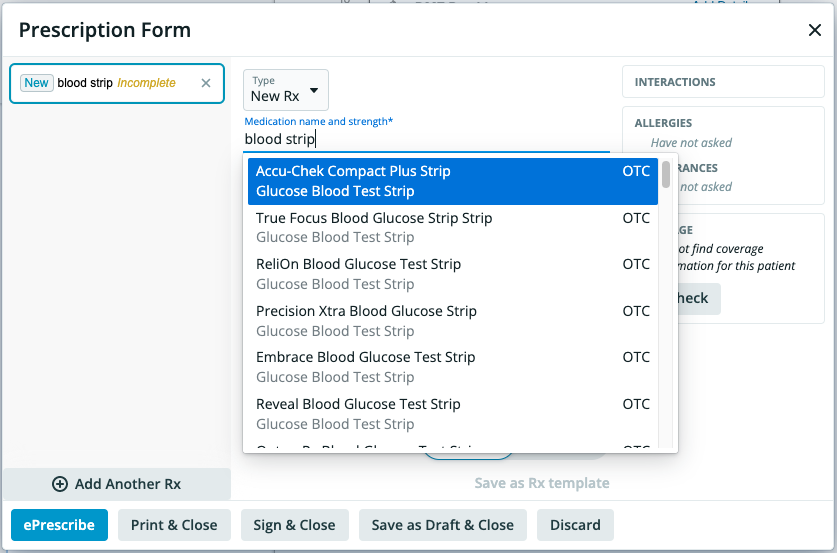
Durable medical equipment can be electronically ordered by the prescription form sent to a pharmacy, or by an eFax through either a Provider Letter or Referral, which can be printed and given directly to the patient. You can order the DME through pharmacies or DME providers.
### Ordering from a pharmacy
You can order DME through a pharmacy with the same workflow you would use to send a prescription. Please follow the instructions detailed in the [Prescription Form Guide- ePrescribing & Ordering Medications](/articles/Prescriptions-Forms-Guide-ePrescribing-and-ordering-meds) for how to order DME from a pharmacy.
 ### Ordering from other DME providers
You can order DME through a Provider Letter or Referral. Please follow the instructions below for how you can order DME through either of these options.
1. In a patient's chart, click **Referral** or **Letter** >> **to Provider**
2. Enter the fax number or email address that you would like to send the order to into the **To** field of the letter
3. Fill out the appropriate information into the body of the letter
4. Click **Sign & Send** to send this electronically, or you can click **Sign & More** to choose a printed option if you wish to give the order to your patient directly as a paper copy. The order will be saved to the patient's Chronological Record as a letter for future reference.
If you routinely order DME for a patient, you can add the DME company to the patient's [Provider List/Care Team in the Clinical Profile](/articles/Using-the-Provider-Directory) so that the specific DME provider for the patient is detailed in the chart.
## Frequently Asked Questions
### How can the DME provider contact my practice if they have questions about the order I sent?
We recommend using a [Print Header](/articles/print-headers) that includes your practice's phone number so that the recipient has easily available contact information for your practice directly on the order.
### How can I save a DME provider as a contact in Elation?
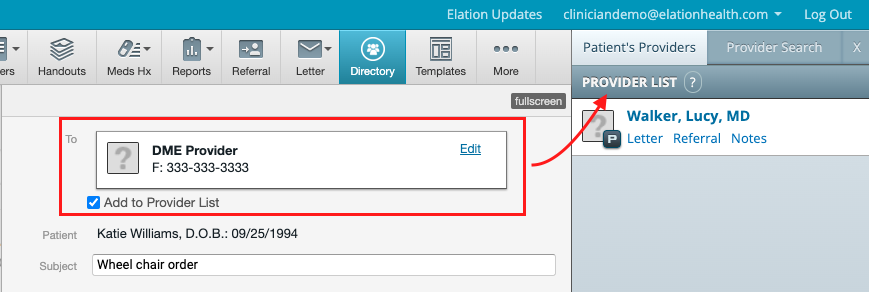
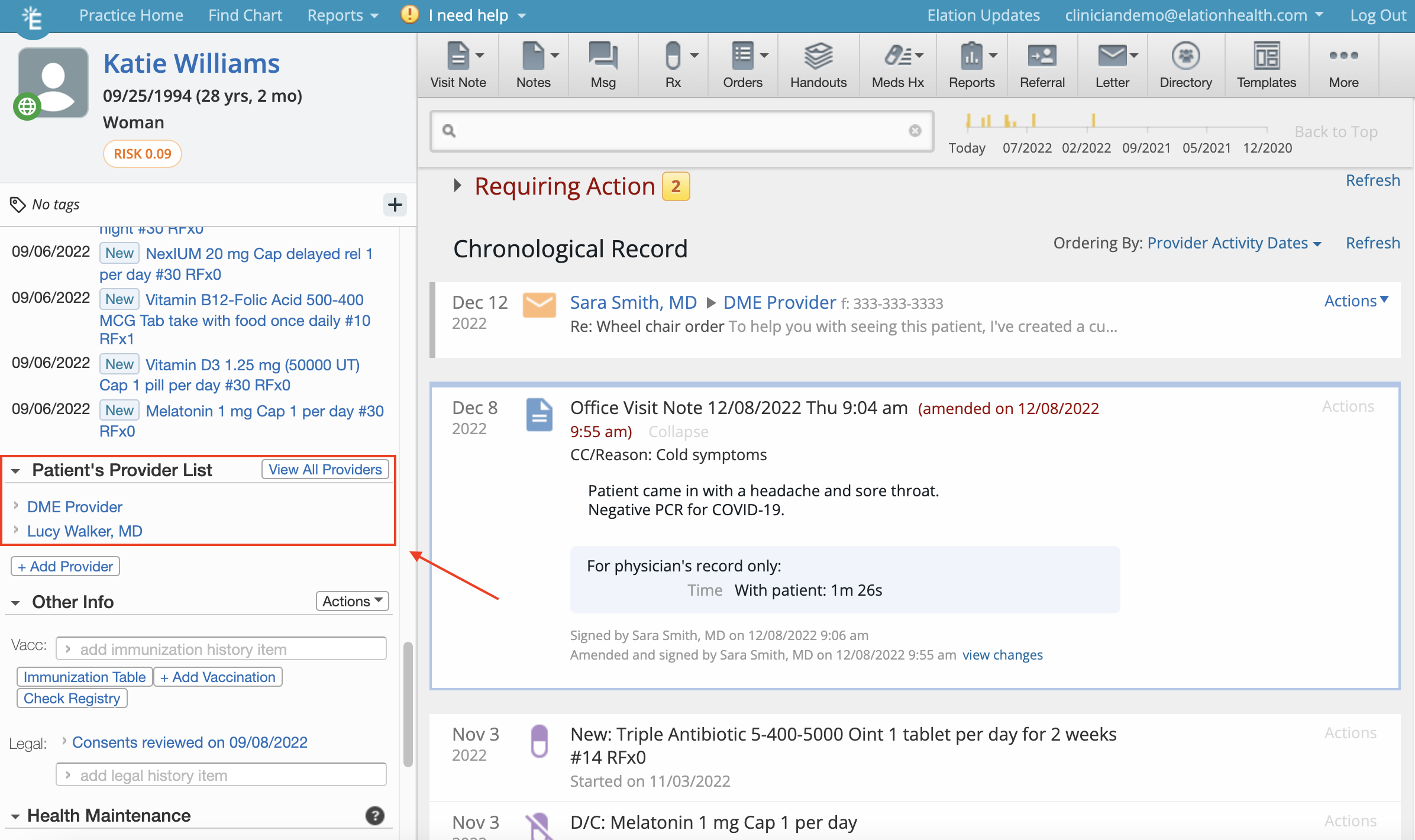
You have the option to save the contact information as a contact in the patient's chart the first time you send a letter or referral to a DME provider in Elation. Selecting the checkbox next to "Add to Provider List'' on the letter or referral will save this contact to the patient's Directory and Provider List/Care Team. Once added, the DME provider will also appear in the Clinical Profile (left hand column of the chart) under *Patient's Provider List* .
**Directory:**
### Ordering from other DME providers
You can order DME through a Provider Letter or Referral. Please follow the instructions below for how you can order DME through either of these options.
1. In a patient's chart, click **Referral** or **Letter** >> **to Provider**
2. Enter the fax number or email address that you would like to send the order to into the **To** field of the letter
3. Fill out the appropriate information into the body of the letter
4. Click **Sign & Send** to send this electronically, or you can click **Sign & More** to choose a printed option if you wish to give the order to your patient directly as a paper copy. The order will be saved to the patient's Chronological Record as a letter for future reference.
If you routinely order DME for a patient, you can add the DME company to the patient's [Provider List/Care Team in the Clinical Profile](/articles/Using-the-Provider-Directory) so that the specific DME provider for the patient is detailed in the chart.
## Frequently Asked Questions
### How can the DME provider contact my practice if they have questions about the order I sent?
We recommend using a [Print Header](/articles/print-headers) that includes your practice's phone number so that the recipient has easily available contact information for your practice directly on the order.
### How can I save a DME provider as a contact in Elation?
You have the option to save the contact information as a contact in the patient's chart the first time you send a letter or referral to a DME provider in Elation. Selecting the checkbox next to "Add to Provider List'' on the letter or referral will save this contact to the patient's Directory and Provider List/Care Team. Once added, the DME provider will also appear in the Clinical Profile (left hand column of the chart) under *Patient's Provider List* .
**Directory:**
 \*\*Clinical Profile: \*\*
 ## Related Articles
* [Prescription Form Guide- ePrescribing & Ordering Medications](/articles/Prescriptions-Forms-Guide-ePrescribing-and-ordering-meds)
* [Letters & Referrals Guide- Managing & searching the provider directory](/articles/Using-the-Provider-Directory)
* [Templates Introduction- Template options in the EHR](/articles/templates-settings)
* [Templates Guide- Using templating softwares with Elation](/articles/using-templating-softwares-with-elation)
* [Print Headers Guide- Managing practice letterheads](/articles/print-headers)
## Related Articles
* [Prescription Form Guide- ePrescribing & Ordering Medications](/articles/Prescriptions-Forms-Guide-ePrescribing-and-ordering-meds)
* [Letters & Referrals Guide- Managing & searching the provider directory](/articles/Using-the-Provider-Directory)
* [Templates Introduction- Template options in the EHR](/articles/templates-settings)
* [Templates Guide- Using templating softwares with Elation](/articles/using-templating-softwares-with-elation)
* [Print Headers Guide- Managing practice letterheads](/articles/print-headers)