> ## Documentation Index
> Fetch the complete documentation index at: https://help.elationhealth.com/llms.txt
> Use this file to discover all available pages before exploring further.
# Fax Inbox Guide - Filing documents from the Fax Inbox into a patient's chart
> This article describes how to file documents from the Fax Inbox into a patient's chart.
📖
\*\* RECOMMENDED READING \*\*
[Click here for an introduction to the Fax Inbox feature in the EHR](/articles/Fax-Inbox-Introduction)
.
**Contents**
* [Overview](#overview)
* [How is the fax inbox organized?](#organization)
* [How do I transfer a document from the Fax Inbox to a patient’s chart?](#description)
* [Workflow Instructions](#workflow_instructions)
* [Queueing documents in preparation for filing](#queue_documents)
* [Filing a document to a patient’s chart](#filing_documents)
* [Reviewing assigned documents](#review_documents)
* [Frequently Asked Questions (FAQ)](#faq)
## Overview
### How is the fax inbox organized?
Within your fax inbox, you'll see a tab for your Elation fax line(s) and a tab labeled **Unfiled Images (non-fax)**.
* The fax line tab(s) will contain any inbound transmissions received by your Elation eFax number.
* The **Unfiled Images** tab will contain any reports that have been removed from a patient's chart but are awaiting re-filing.
Under any of these tabs, you can upload documents from your computer to Elation.
### How do I transfer a document from the Fax Inbox to a patient’s chart?
Use the workflows below to learn how to transfer documents from any of the Fax tabs into the appropriate patient's chart.
## Workflow Instructions
### Queueing documents in preparation for filing
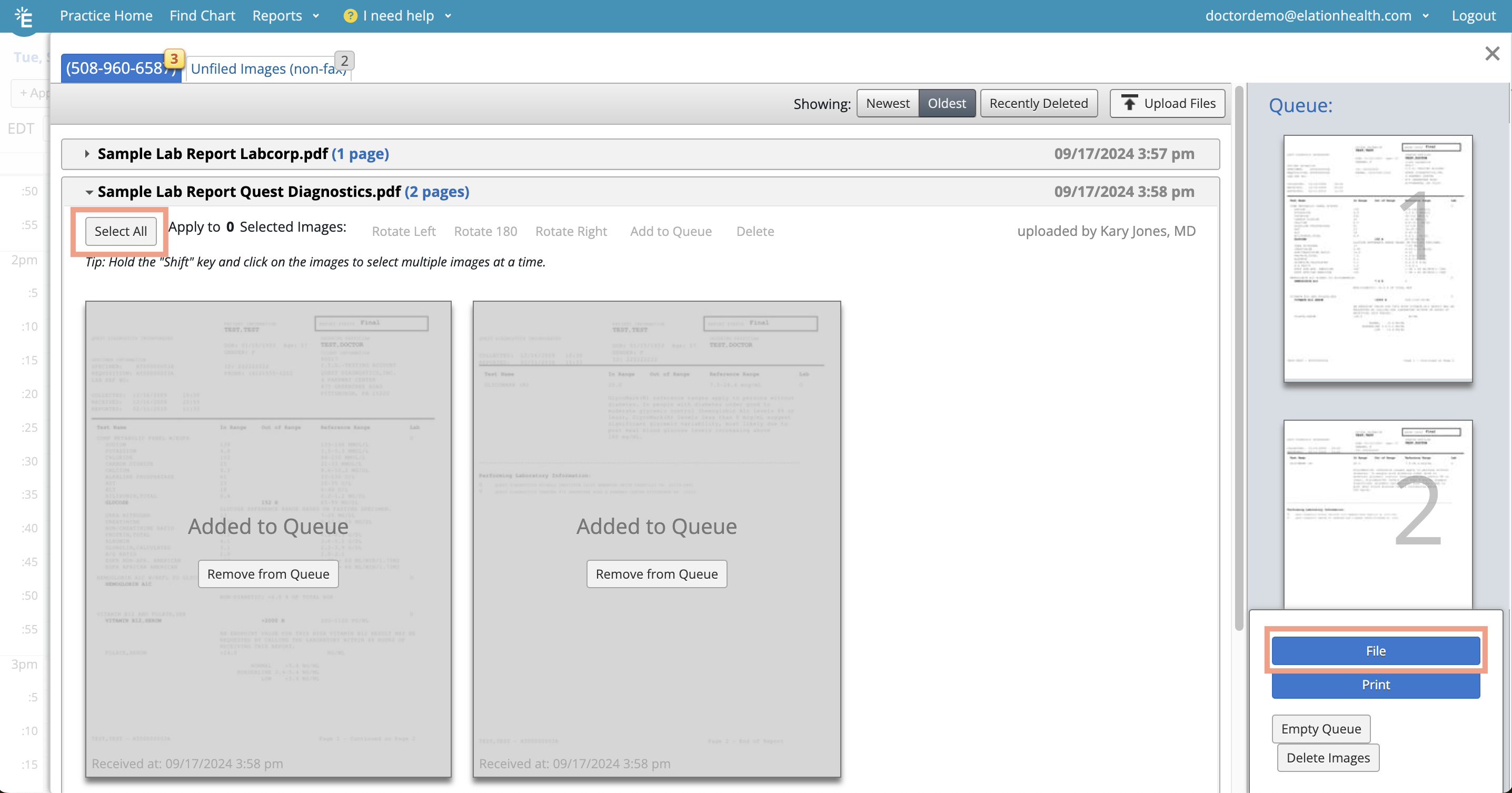 To queue a document in preparation for filing:
| **1** | Click the name of the document to expand a preview of its pages. |
| ----- | ------------------------------------------------------------------------------------------------------------------------------------------------------------------------------------------------------------------------------------------------------------------------------------------------------------------------------------------------------------------------------------------------------------------------------------------- |
| **2** | Select all the pages of the document you want to file using one of the following methods: To select an individual page, click on the box in the upper left hand corner of each page preview . • To select all pages within the document, click **Select all** at the top of the document. |
| **3** | At the top of the document, click **Add to Queue** in the toolbar. You will see your selected pages appear on the right side of the Fax Inbox in the **Queue** section. Pages that have already been added to the Queue will become grayed out so that you know which pages have been selected. This effect also locks the pages for other users in your practice to block them from taking action on the pages you're actively working on. |
| **4** | (Optional) Take any of the following actions within the Queue if needed: Change the order of the pages by dragging and dropping the page previews. • Click **Print** to print all pages in the Queue. • Click **Empty Queue** to release all pages from the Queue back into the fax inbox. • Click **Delete Images** to delete all pages from your fax inbox entirely. Use this button with caution. |
| **5** | Click **File** to continue to the next step. |
### Filing a document to a patient’s chart
To queue a document in preparation for filing:
| **1** | Click the name of the document to expand a preview of its pages. |
| ----- | ------------------------------------------------------------------------------------------------------------------------------------------------------------------------------------------------------------------------------------------------------------------------------------------------------------------------------------------------------------------------------------------------------------------------------------------- |
| **2** | Select all the pages of the document you want to file using one of the following methods: To select an individual page, click on the box in the upper left hand corner of each page preview . • To select all pages within the document, click **Select all** at the top of the document. |
| **3** | At the top of the document, click **Add to Queue** in the toolbar. You will see your selected pages appear on the right side of the Fax Inbox in the **Queue** section. Pages that have already been added to the Queue will become grayed out so that you know which pages have been selected. This effect also locks the pages for other users in your practice to block them from taking action on the pages you're actively working on. |
| **4** | (Optional) Take any of the following actions within the Queue if needed: Change the order of the pages by dragging and dropping the page previews. • Click **Print** to print all pages in the Queue. • Click **Empty Queue** to release all pages from the Queue back into the fax inbox. • Click **Delete Images** to delete all pages from your fax inbox entirely. Use this button with caution. |
| **5** | Click **File** to continue to the next step. |
### Filing a document to a patient’s chart
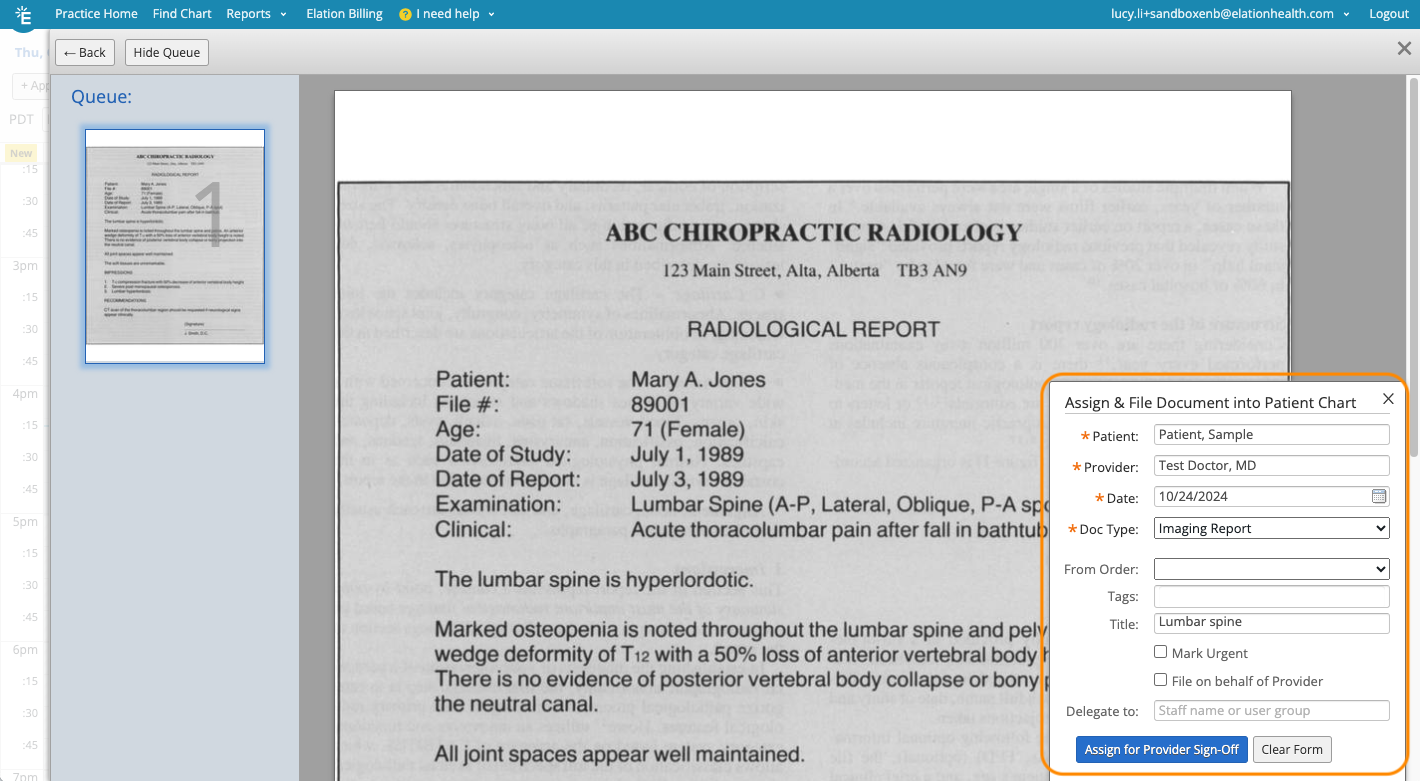 To file a document into a patient’s chart:
**1**
In the **Assign & File Document Into Patient Chart** form, fill in the following fields. Fields with an asterisk (\*) are required:
* **Patient**\* - The patient the document belongs to.
* **Provider**\* - The Provider responsible for reviewing, maintaining, and possibly signing the document.
* **Date**\* - The date of the document.
* **Document Type**\* - The type of report this document should be categorized as.
* [Click here to learn more about Report Categories and how to adjust your Report Categories list](/articles/report-types).
* **Tags** - The [document tag(s)](/articles/tag-reports-and-notes-with-document-tags) you want to associate with the document.
* **Title** - The name of the document.
**2**
To show the report in the **Urgent** inbox of the assignee's Practice Home queue, check off the **Mark Urgent** box.
**3**
Check off the **File on behalf of Provider** box if one of the following scenarios is true: Document has already been physically reviewed and signed by the provider outside of Elation.
Document does not require provider sign-off (ex. copy of the patient’s insurance card).
To indicate the report doesn't need to be signed, check off the **File on behalf of Provider** box.
**4**
(Optional) To delegate the sign-off responsibility to a Staff Level User or User Group, input their name in the **Delegate to** field.
To file a document into a patient’s chart:
**1**
In the **Assign & File Document Into Patient Chart** form, fill in the following fields. Fields with an asterisk (\*) are required:
* **Patient**\* - The patient the document belongs to.
* **Provider**\* - The Provider responsible for reviewing, maintaining, and possibly signing the document.
* **Date**\* - The date of the document.
* **Document Type**\* - The type of report this document should be categorized as.
* [Click here to learn more about Report Categories and how to adjust your Report Categories list](/articles/report-types).
* **Tags** - The [document tag(s)](/articles/tag-reports-and-notes-with-document-tags) you want to associate with the document.
* **Title** - The name of the document.
**2**
To show the report in the **Urgent** inbox of the assignee's Practice Home queue, check off the **Mark Urgent** box.
**3**
Check off the **File on behalf of Provider** box if one of the following scenarios is true: Document has already been physically reviewed and signed by the provider outside of Elation.
Document does not require provider sign-off (ex. copy of the patient’s insurance card).
To indicate the report doesn't need to be signed, check off the **File on behalf of Provider** box.
**4**
(Optional) To delegate the sign-off responsibility to a Staff Level User or User Group, input their name in the **Delegate to** field. 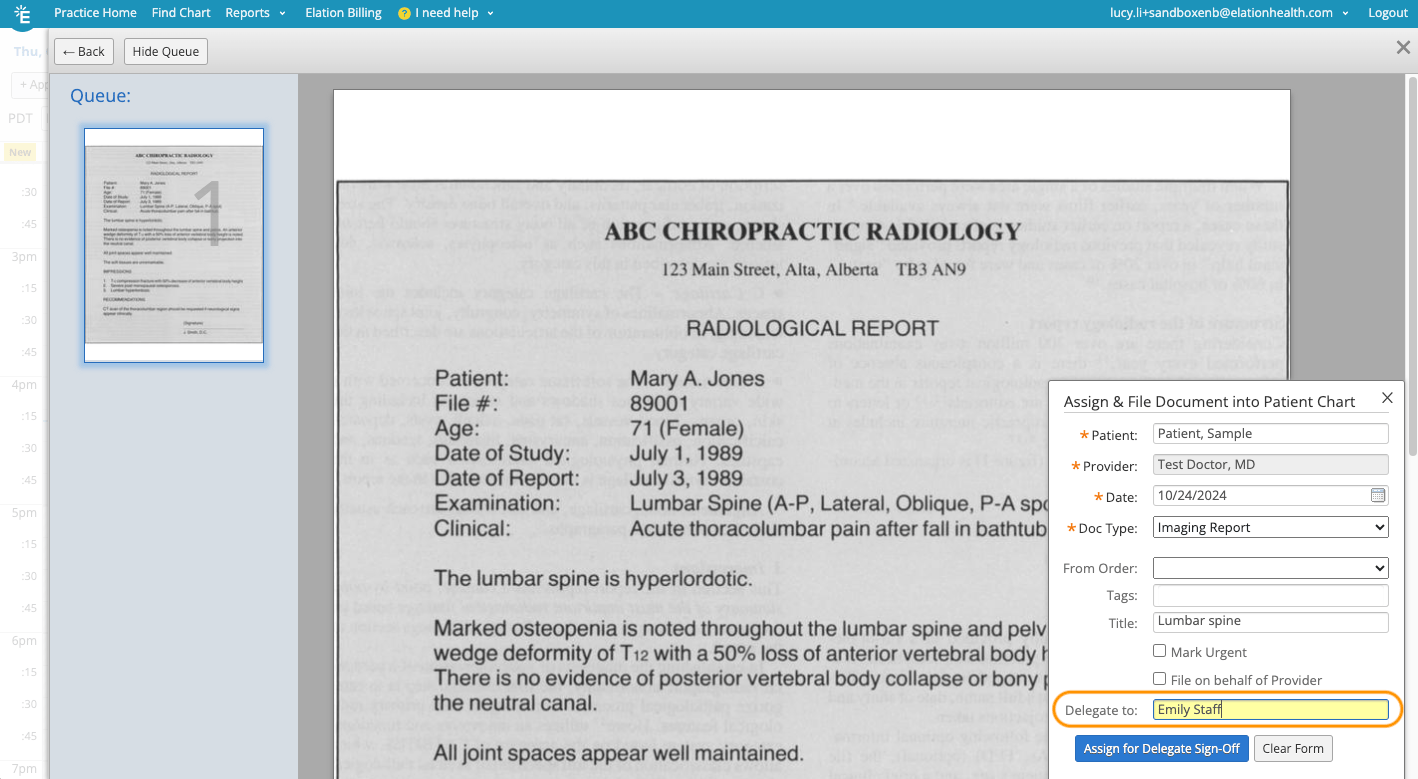 **5**
To complete the filing workflow, take the action below that matches your use case:
* If **File on behalf of reviewer** was selected - click **File Into Chart.**
* The document won't need to be signed; it'll be added directly to the Chronological Record of the patient's chart.
* If you specified a delegate - click **Assign for Delegate Sign-off.**
* The document will appear in the staff/staff user group's Reports queue and require sign-off.
* If neither of the above apply - click **Assign for Sign-off.**
* The document will appear in the Reports queue of the provider whose name was inputted earlier in the form. It will need to be signed.
Contact Support to request the **Delegate to Staff** feature.
To delegate sign-off to more than one Staff Level User, you must first create a [User Group](/articles/user-groups) that includes all staff who are delegates and then input this User Group into the **Delegate to** field.
**Locating faxes filed from the Fax Inbox**
Once a fax is filed and routed for sign-off:
* The document appears in the assigned provider’s or staff delegate’s **Reports** queue in **Practice Home**.
* The document also appears in the **Requiring Action** section of the patient’s chart until signed off.
After sign-off, or if **File on behalf of Provider** was selected during filing, the document is stored in the patient’s **Chronological Record**.
#### Reviewing assigned documents
If you see any reports in the **Reports** inbox of your **Practice Home**, this means the report has been assigned to you for review and sign off. To review and sign the assigned reports:
1. Click on the patient’s name to open their chart.
2. Review the report in the Requiring Action section at the top of the chart.
3. Click **Sign Off** if you're a Provider Level User or **Sign off on behalf of provider** if you're a Staff Level User.
📖
\*\*SEE ALSO \*\*
[Letter & Referral Guide - Sending a fax](/articles/how-to-send-a-fax)
for details on sending faxes and troubleshooting failures to send.
## Frequently Asked Questions
### If multiple people are operating in the Fax Inbox, can someone else take action on the same pages that I'm filing?
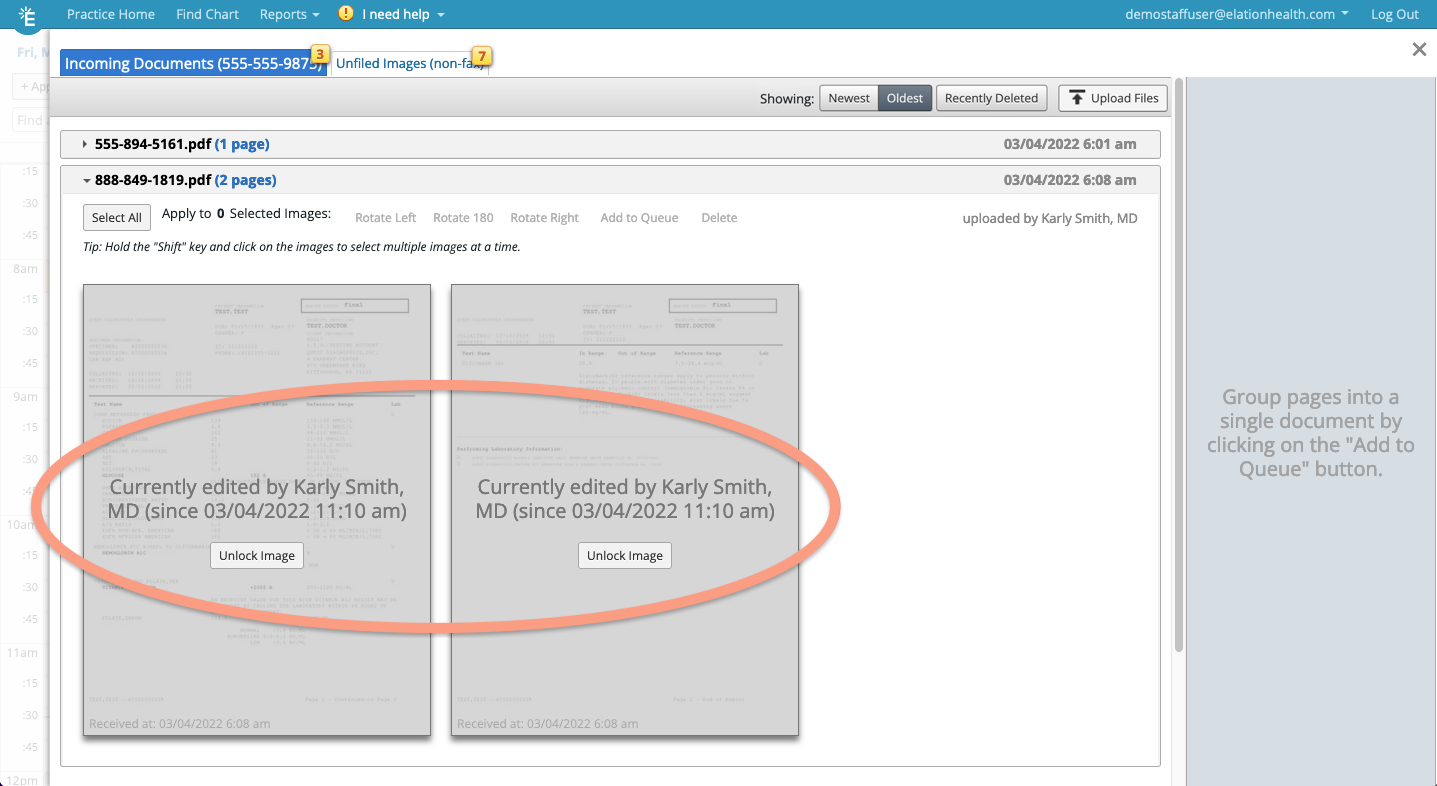
When you add pages to the filing queue, other users in the Fax Inbox will see those pages as locked images. This experience will deter others from taking conflicting action on pages that are already being processed.
If a user wishes to take action on a locked image, they must first click **Unlock Image**.
**5**
To complete the filing workflow, take the action below that matches your use case:
* If **File on behalf of reviewer** was selected - click **File Into Chart.**
* The document won't need to be signed; it'll be added directly to the Chronological Record of the patient's chart.
* If you specified a delegate - click **Assign for Delegate Sign-off.**
* The document will appear in the staff/staff user group's Reports queue and require sign-off.
* If neither of the above apply - click **Assign for Sign-off.**
* The document will appear in the Reports queue of the provider whose name was inputted earlier in the form. It will need to be signed.
Contact Support to request the **Delegate to Staff** feature.
To delegate sign-off to more than one Staff Level User, you must first create a [User Group](/articles/user-groups) that includes all staff who are delegates and then input this User Group into the **Delegate to** field.
**Locating faxes filed from the Fax Inbox**
Once a fax is filed and routed for sign-off:
* The document appears in the assigned provider’s or staff delegate’s **Reports** queue in **Practice Home**.
* The document also appears in the **Requiring Action** section of the patient’s chart until signed off.
After sign-off, or if **File on behalf of Provider** was selected during filing, the document is stored in the patient’s **Chronological Record**.
#### Reviewing assigned documents
If you see any reports in the **Reports** inbox of your **Practice Home**, this means the report has been assigned to you for review and sign off. To review and sign the assigned reports:
1. Click on the patient’s name to open their chart.
2. Review the report in the Requiring Action section at the top of the chart.
3. Click **Sign Off** if you're a Provider Level User or **Sign off on behalf of provider** if you're a Staff Level User.
📖
\*\*SEE ALSO \*\*
[Letter & Referral Guide - Sending a fax](/articles/how-to-send-a-fax)
for details on sending faxes and troubleshooting failures to send.
## Frequently Asked Questions
### If multiple people are operating in the Fax Inbox, can someone else take action on the same pages that I'm filing?
When you add pages to the filing queue, other users in the Fax Inbox will see those pages as locked images. This experience will deter others from taking conflicting action on pages that are already being processed.
If a user wishes to take action on a locked image, they must first click **Unlock Image**.
 ### Will the Provider’s signature still be appended to clinical documents if the documents were filed or signed by a Staff Level User?
Yes, a Provider’s signature will always be appended to clinical documents that were filed or signed by a Staff Level User. The signature will have the following format: ***Signed off for \[PROVIDER NAME] by \[STAFF NAME] on \[DATE & TIME SIGNED]***.
### Can a Provider still sign off on a Report that was delegated to a Staff Level User?
Yes, a Provider can still sign off on a Report that was delegated to a Staff Level User from the Requiring Action section of the patient’s chart.
### After I delegate sign-off to a Staff Level User and click "Assign for Delegate Sign-off," can I change the delegate assignment to a different Staff Level User or User Group?
After you delegate sign-off and click **Assign for Delegate Sign-off**, you will not be able to change the delegate to a different Staff Level User or User Group. You will only be able to change the assignment to a Provider Level User.
### Can I restrict which staff can be selected as delegates for signing documents?
No, you cannot restrict which staff can be selected as delegates for signing documents. Any active Staff Level Users in the practice can be selected as a delegate. If you are using the Workspaces feature, then any Staff Level Users within a given Workspace can be selected as a delegate.
### Can I delegate sign off to multiple users?
Yes, you can delegate sign off to multiple users but those users must first be added to the same User Group. You cannot input the names of multiple users or multiple User Groups in the **Delegate to** field.
### Can I delegate to multiple user groups?
No, currently you can only delegate sign off to a single user group.
### Why is the Provider seeing a Report that was delegated to a user group?
If a Provider can see a Report that was delegated to a User Group in their Reports inbox, this means the Provider is a member of the delegated User Group. If your objective is to remove a Provider from the sign-off process, please remember to remove them from the User Group(s) that are used for delegation.
## Related Articles
* [Fax Inbox Introduction](/articles/Fax-Inbox-Introduction)
* [Fax Inbox Guide - Receiving faxes in your Elation Fax Inbox](/articles/Receiving-faxes-in-your-Elation-Fax-Inbox)
* [Fax Inbox Guide - Uploading documents to the Fax Inbox](/articles/Uploading-documents-to-the-Fax-Inbox)
* [Fax Inbox Guide - Actioning on documents within the Fax Inbox](/articles/Actioning-on-documents-within-the-Fax-Inbox)
* [Fax Inbox Guide - Managing fax settings & fax usage](/articles/Fax-Inbox-Guide-Managing-fax-settings-and-fax-usage)
### Will the Provider’s signature still be appended to clinical documents if the documents were filed or signed by a Staff Level User?
Yes, a Provider’s signature will always be appended to clinical documents that were filed or signed by a Staff Level User. The signature will have the following format: ***Signed off for \[PROVIDER NAME] by \[STAFF NAME] on \[DATE & TIME SIGNED]***.
### Can a Provider still sign off on a Report that was delegated to a Staff Level User?
Yes, a Provider can still sign off on a Report that was delegated to a Staff Level User from the Requiring Action section of the patient’s chart.
### After I delegate sign-off to a Staff Level User and click "Assign for Delegate Sign-off," can I change the delegate assignment to a different Staff Level User or User Group?
After you delegate sign-off and click **Assign for Delegate Sign-off**, you will not be able to change the delegate to a different Staff Level User or User Group. You will only be able to change the assignment to a Provider Level User.
### Can I restrict which staff can be selected as delegates for signing documents?
No, you cannot restrict which staff can be selected as delegates for signing documents. Any active Staff Level Users in the practice can be selected as a delegate. If you are using the Workspaces feature, then any Staff Level Users within a given Workspace can be selected as a delegate.
### Can I delegate sign off to multiple users?
Yes, you can delegate sign off to multiple users but those users must first be added to the same User Group. You cannot input the names of multiple users or multiple User Groups in the **Delegate to** field.
### Can I delegate to multiple user groups?
No, currently you can only delegate sign off to a single user group.
### Why is the Provider seeing a Report that was delegated to a user group?
If a Provider can see a Report that was delegated to a User Group in their Reports inbox, this means the Provider is a member of the delegated User Group. If your objective is to remove a Provider from the sign-off process, please remember to remove them from the User Group(s) that are used for delegation.
## Related Articles
* [Fax Inbox Introduction](/articles/Fax-Inbox-Introduction)
* [Fax Inbox Guide - Receiving faxes in your Elation Fax Inbox](/articles/Receiving-faxes-in-your-Elation-Fax-Inbox)
* [Fax Inbox Guide - Uploading documents to the Fax Inbox](/articles/Uploading-documents-to-the-Fax-Inbox)
* [Fax Inbox Guide - Actioning on documents within the Fax Inbox](/articles/Actioning-on-documents-within-the-Fax-Inbox)
* [Fax Inbox Guide - Managing fax settings & fax usage](/articles/Fax-Inbox-Guide-Managing-fax-settings-and-fax-usage)