> ## Documentation Index
> Fetch the complete documentation index at: https://help.elationhealth.com/llms.txt
> Use this file to discover all available pages before exploring further.
# Elation Note Guide - Managing custom blocks
## Overview
### What are custom blocks?
A custom block is a reusable section that helps you collect specific, structured information during a patient visit. You can add questions and instructions to guide what you want to document, and group related fields together to keep everything organized for you and your team.
The question formats available are:
| **Question Format** | **Use Case** |
| ------------------- | -------------------------------------------------------------------------------------------------------------------------------------------------------------------------------------------------------------------------------------------------------------------------------------------------------- |
| Paragraph Text | Add a question prompt that allows a free-text response. Optionally, enter default text to appear in the visit note when the custom block is added. |
| Dropdown Select | Add a question that displays a dropdown menu with multiple options, allowing only **one** selection to appear in the visit note. Optionally, specify a default option to appear in the visit note when the custom block is added. Only the **selected response** will appear in the visit note printout. |
| Radio Select | Add a question to the visit note draft that displays multiple options but allows only one to be selected. Optionally, set a default option to be selected in the visit note when the custom block is added. Only the **selected response** will appear in the visit note printout. |
| Checkbox | Add a question to the visit note draft that displays multiple checkboxes, allowing more than one option to be selected. Optionally, set one or more default options to be selected in the visit note when the custom block is added. Only **selected responses** will appear in the visit note printout. |
| Date | Add a question with a date picker. Optionally, set a default date that appears in the visit note when the custom block is added. |
Custom blocks can be manually added to any Elation Note draft or included in an Elation Note Template for easy reuse. Data from custom blocks populates the USCDI data class for **data**.
### When should I use a custom block?
Use a custom block when the standard options don’t quite fit what you need. They're great for adding structured input fields, building layouts that work better for your workflow, or adding conditional logic to show or hide fields based on user input.
Common use cases include:
* Assessment tools that are not available through Elation’s Clinical Questionnaires (e.g. STEADI 3 and IADL)
* Questions around care coordination (e.g. Advanced Care Planning and Healthcare Proxy)
* Screenings for chronic conditions (ex. Diabetic Foot Exam and Asthma Control Assessment)
#### When to avoid using custom blocks
Custom blocks should not be used to replace other standard data collection formats (e.g. patient vitals or clinical questionnaires). Elation relies on these standard data collection points to populate important measures, such as the vitals table for trending in the chronological record and quality measures (MIPs).
### What does a custom block look like?
#### Custom block builder view
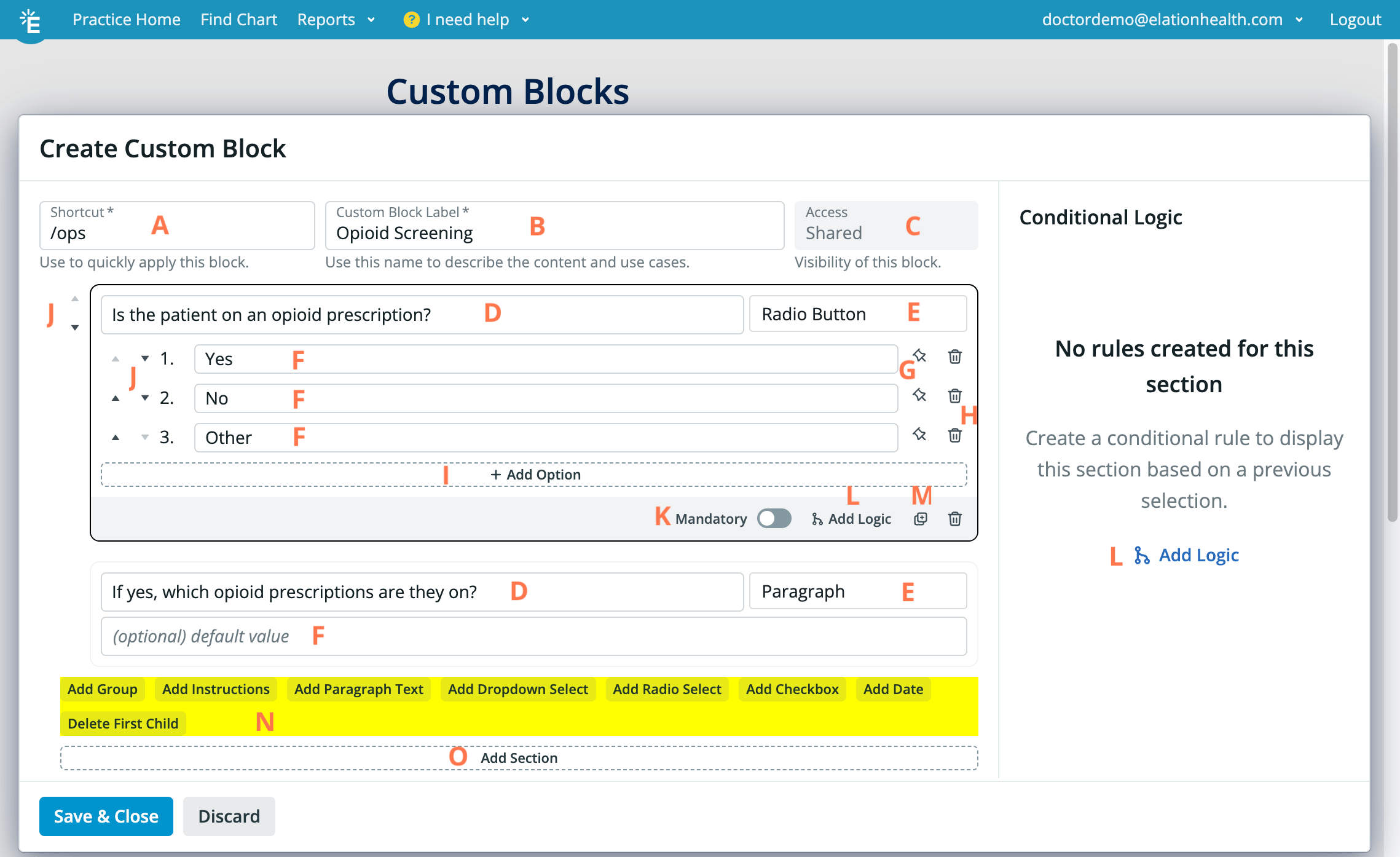 | **Label** | **Name** | **Description** |
| --------- | --------------------------------- | ----------------------------------------------------------------------------------------- |
| A | Shortcut | Specify a shortcut to use when inserting this custom block into your Elation Note. |
| B | Custom Block Label | Name the block based on its content and purpose. |
| C | Access - coming soon | Displays the visibility level of the custom block. |
| D | Question Text | Type the question you want to ask. |
| E | Question Type | Specifies the question format for this section. |
| F | Option | Enter one of the possible answers for the question. |
| G | Toggle Default pin | Click the pin next to the answer you want to set as the default for the question. |
| H | Delete icon | Delete a question or answer. |
| I | Add Option | Add another possible answer. |
| J | Sort arrows | Move a question or answer to a different position. |
| K | Mandatory toggle | Mark a question as required. |
| L | Add Logic | Create a rule that displays this section only when a specific answer is selected earlier. |
| M | Duplicate icon - coming soon | Duplicates a section |
| N | Quick actions for adding sections | Pick the question format you want to add. |
| O | Add Section | Click to add a new question. A new **Dropdown** field will be added by default. |
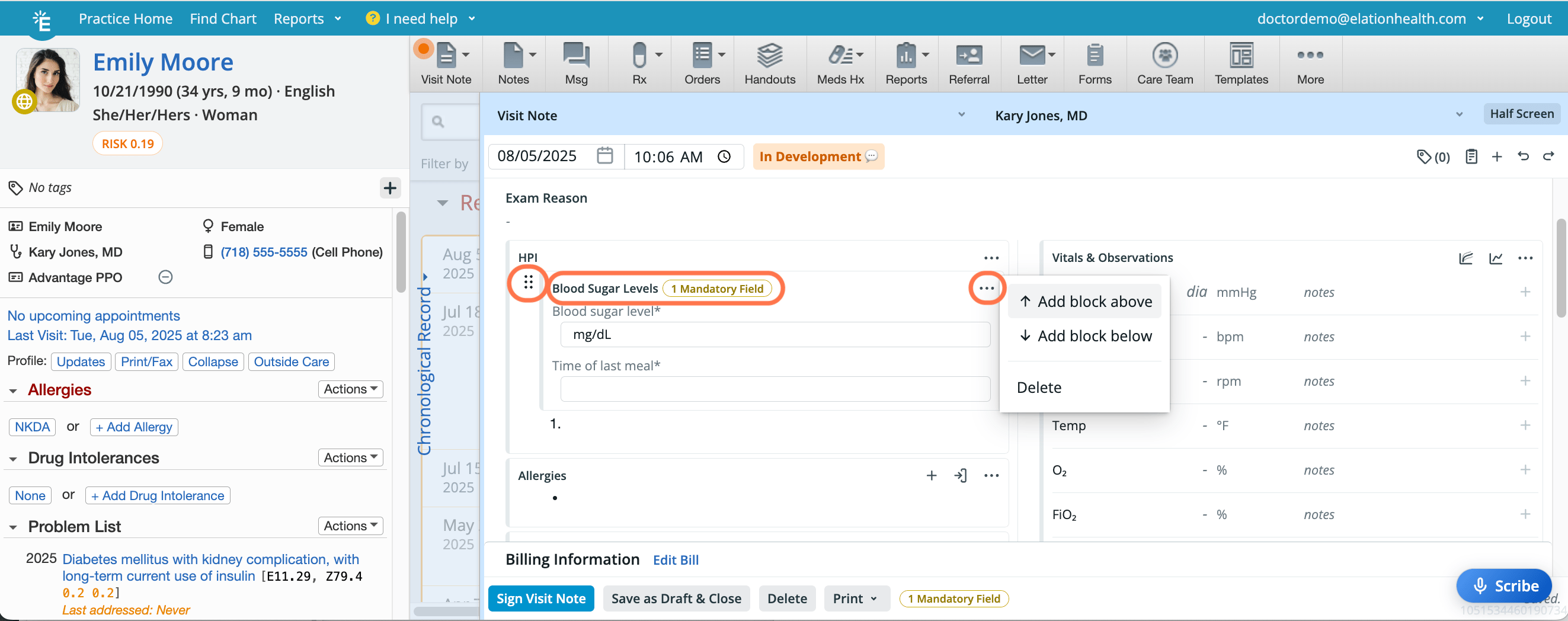
#### Custom block in visit note
| **Label** | **Name** | **Description** |
| --------- | --------------------------------- | ----------------------------------------------------------------------------------------- |
| A | Shortcut | Specify a shortcut to use when inserting this custom block into your Elation Note. |
| B | Custom Block Label | Name the block based on its content and purpose. |
| C | Access - coming soon | Displays the visibility level of the custom block. |
| D | Question Text | Type the question you want to ask. |
| E | Question Type | Specifies the question format for this section. |
| F | Option | Enter one of the possible answers for the question. |
| G | Toggle Default pin | Click the pin next to the answer you want to set as the default for the question. |
| H | Delete icon | Delete a question or answer. |
| I | Add Option | Add another possible answer. |
| J | Sort arrows | Move a question or answer to a different position. |
| K | Mandatory toggle | Mark a question as required. |
| L | Add Logic | Create a rule that displays this section only when a specific answer is selected earlier. |
| M | Duplicate icon - coming soon | Duplicates a section |
| N | Quick actions for adding sections | Pick the question format you want to add. |
| O | Add Section | Click to add a new question. A new **Dropdown** field will be added by default. |
#### Custom block in visit note
 ## Workflow Instructions
### Creating custom blocks
Custom blocks can only be created from Settings:
| **1** | In the navigation bar at the top of your Elation account, click your **email address** followed by **Settings** . |
| ----- | ----------------------------------------------------------------------------------------------------------------------------------- |
| **2** | In the left-hand navigation menu, click the **Custom Blocks** page. |
| **3** | Click the **+ Create Custom Block** button. The custom block builder will appear in a pop-up window. |
| **4** | Complete the mandatory **Shortcut** and **Description** fields. Choose a shortcut that you can easily remember for convenience. |
| **5** | Click any of the buttons in the yellow menu to add sections to your custom block. (Details about each section are described above.) |
| **6** | When the selected section appears, fill out the associated fields for the selection. |
| **7** | Click **Save & Close** to complete. |
#### Grouping sections
Group similar sections together to keep your layout organized. Fields can be moved in and out of groups. If a group is emptied of fields, it will be deleted automatically.
Click **Add Group** to add a heading to your custom block and then add your sections to the group.
#### Adding instructions
Enter free-text instructions that appear only while the visit note is in draft mode. These can be used to guide documentation or provide context and directions for collaborators.
Click **Add Instructions** to add a section for instructions.
#### Creating conditional logic rules
Apply conditional logic to Dropdown, Radio, and Checkbox sections to configure rules that show or hide other sections based on earlier responses.
| **1** | Click **Add Logic** to open the Conditional Logic builder for the question that you want to display under specific conditions. This question will appear in the **Display** section. |
| ----- | ------------------------------------------------------------------------------------------------------------------------------------------------------------------------------------ |
| **2** | Choose the question and answer that you want the rule to look at in the **if** section. |
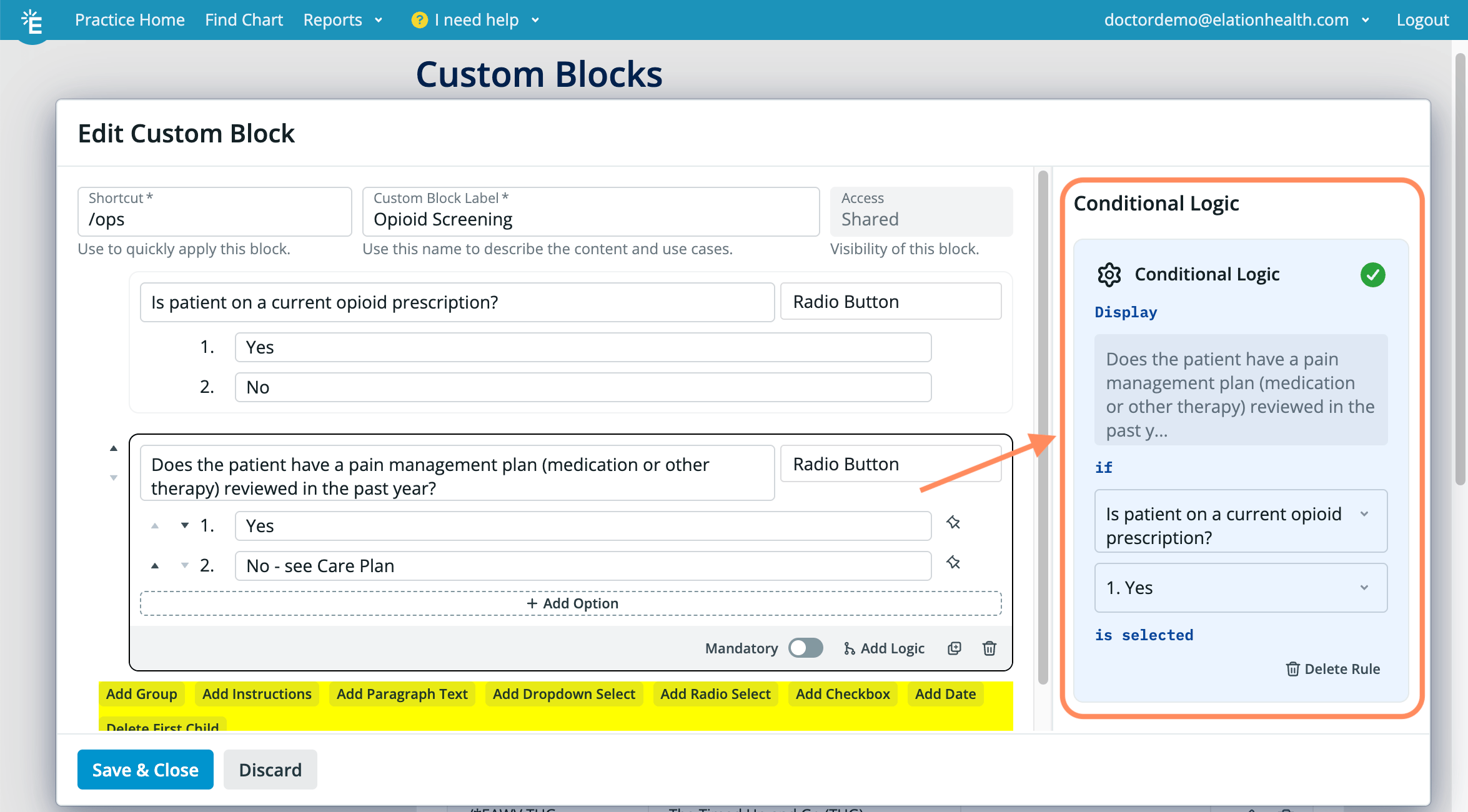
Here is an example of a question with conditional logic rules:
* The question *“Does the patient have a pain management plan (medication or other therapy) reviewed in the past year?”* only appears if the answer to **“Is patient on a current opioid prescription?”** is a **Yes**.
## Workflow Instructions
### Creating custom blocks
Custom blocks can only be created from Settings:
| **1** | In the navigation bar at the top of your Elation account, click your **email address** followed by **Settings** . |
| ----- | ----------------------------------------------------------------------------------------------------------------------------------- |
| **2** | In the left-hand navigation menu, click the **Custom Blocks** page. |
| **3** | Click the **+ Create Custom Block** button. The custom block builder will appear in a pop-up window. |
| **4** | Complete the mandatory **Shortcut** and **Description** fields. Choose a shortcut that you can easily remember for convenience. |
| **5** | Click any of the buttons in the yellow menu to add sections to your custom block. (Details about each section are described above.) |
| **6** | When the selected section appears, fill out the associated fields for the selection. |
| **7** | Click **Save & Close** to complete. |
#### Grouping sections
Group similar sections together to keep your layout organized. Fields can be moved in and out of groups. If a group is emptied of fields, it will be deleted automatically.
Click **Add Group** to add a heading to your custom block and then add your sections to the group.
#### Adding instructions
Enter free-text instructions that appear only while the visit note is in draft mode. These can be used to guide documentation or provide context and directions for collaborators.
Click **Add Instructions** to add a section for instructions.
#### Creating conditional logic rules
Apply conditional logic to Dropdown, Radio, and Checkbox sections to configure rules that show or hide other sections based on earlier responses.
| **1** | Click **Add Logic** to open the Conditional Logic builder for the question that you want to display under specific conditions. This question will appear in the **Display** section. |
| ----- | ------------------------------------------------------------------------------------------------------------------------------------------------------------------------------------ |
| **2** | Choose the question and answer that you want the rule to look at in the **if** section. |
Here is an example of a question with conditional logic rules:
* The question *“Does the patient have a pain management plan (medication or other therapy) reviewed in the past year?”* only appears if the answer to **“Is patient on a current opioid prescription?”** is a **Yes**.
 ### Editing a custom block
| **1** | Locate the custom block on the Settings page. |
| ----- | --------------------------------------------- |
| **2** | Click the **pencil icon** . |
| **3** | Make edits in the pop-up window. |
| **4** | Click **Save & Close** . |
### Deleting a custom block
| **1** | Locate the custom block on the Settings page. |
| ----- | --------------------------------------------- |
| **2** | Click the **trash can icon** . |
Delete with caution as deleted custom blocks cannot be restored.
### Adding a custom block directly to a draft note
[Click here to learn how to add a custom block to an Elation Note](/articles/Elation-Note-Guide-Using-visit-note-blocks#add).
### Adding a custom block to a template
[Click here to learn how to add a custom block to an Elation Note Template](/articles/Elation-Note-Guide-Managing-Templates).
## Frequently Asked Questions
### Is it possible to duplicate a custom block to make a new one?
You cannot duplicate a custom block to make a new one. This feature is coming soon.
### If I delete a custom block that was added to a Template, what happens to the Template?
If you need to delete a custom block, we recommend reviewing your templates and removing the custom block first. If you don’t remove a custom block from a template before deleting the custom block, the template, draft and signed note will show an empty block where the custom block used to be. Our team will be working on a fix for this soon.
### Is data from custom blocks included in CCDA exports?
Custom blocks must be nested inside standard blocks to ensure that custom block data is included in the parent block's data class for USCDI/CCDA. For example, a custom block nested in allergies will have its results included in the allergies data class for the CCDA export.
## Related Articles
* [Elation Note Introduction](/articles/Elation-Note)
* [Elation Note Guide - Managing Elation Note Templates](/articles/Elation-Note-Guide-Managing-Templates)
* [Elation Note Guide - Using visit note blocks](/articles/Elation-Note-Guide-Using-visit-note-blocks)
* [Elation Note Guide - Documenting an encounter](/articles/Elation-Note-Guide-Documenting-an-encounter)
* [Elation Note Guide - Release Summary](/articles/Elation-Note-Release-Summary)
### Editing a custom block
| **1** | Locate the custom block on the Settings page. |
| ----- | --------------------------------------------- |
| **2** | Click the **pencil icon** . |
| **3** | Make edits in the pop-up window. |
| **4** | Click **Save & Close** . |
### Deleting a custom block
| **1** | Locate the custom block on the Settings page. |
| ----- | --------------------------------------------- |
| **2** | Click the **trash can icon** . |
Delete with caution as deleted custom blocks cannot be restored.
### Adding a custom block directly to a draft note
[Click here to learn how to add a custom block to an Elation Note](/articles/Elation-Note-Guide-Using-visit-note-blocks#add).
### Adding a custom block to a template
[Click here to learn how to add a custom block to an Elation Note Template](/articles/Elation-Note-Guide-Managing-Templates).
## Frequently Asked Questions
### Is it possible to duplicate a custom block to make a new one?
You cannot duplicate a custom block to make a new one. This feature is coming soon.
### If I delete a custom block that was added to a Template, what happens to the Template?
If you need to delete a custom block, we recommend reviewing your templates and removing the custom block first. If you don’t remove a custom block from a template before deleting the custom block, the template, draft and signed note will show an empty block where the custom block used to be. Our team will be working on a fix for this soon.
### Is data from custom blocks included in CCDA exports?
Custom blocks must be nested inside standard blocks to ensure that custom block data is included in the parent block's data class for USCDI/CCDA. For example, a custom block nested in allergies will have its results included in the allergies data class for the CCDA export.
## Related Articles
* [Elation Note Introduction](/articles/Elation-Note)
* [Elation Note Guide - Managing Elation Note Templates](/articles/Elation-Note-Guide-Managing-Templates)
* [Elation Note Guide - Using visit note blocks](/articles/Elation-Note-Guide-Using-visit-note-blocks)
* [Elation Note Guide - Documenting an encounter](/articles/Elation-Note-Guide-Documenting-an-encounter)
* [Elation Note Guide - Release Summary](/articles/Elation-Note-Release-Summary)