> ## Documentation Index
> Fetch the complete documentation index at: https://help.elationhealth.com/llms.txt
> Use this file to discover all available pages before exploring further.
# Coding Guide - Searching for ICD-10 codes using the Dx Code Navigator (Premium)
## Overview
### What is the DX Code Navigator?
By default, all ICD-10 fields (e.g. in the Lab Order Form, Problem List, Referral, Visit Note) include built-in search functionality for ICD-10-CM codes, allowing users to quickly look up and select the appropriate codes. As users type search terms, matching results appear automatically to simplify selection. To narrow the results, users can add more specific search terms. When a diagnosis involves a code combination, selecting it will automatically add all related codes to the entry.
Premium EHR users can utilize the **Dx Code Navigator**, a tool that streamlines the process of searching for and applying ICD-10 codes and code combinations. Users start by entering a broad search term for a diagnosis category, then refine their results using suggested modifiers to identify more specific or secondary codes.
* Premium EHR users can also request an optional setting that separates code combinations into individual line items within the **Assessment** section of visit notes, improving organization and clarity.
* This setting **does not** separate code combinations into individual line items in the **Problem List**.
### What are the benefits of the Dx Code Navigator?
The Dx Code Navigator allows you to quickly search for and apply specific, detailed, and accurate diagnosis codes directly to your documentation. This is particularly valuable for practices participating in quality programs that calculate a patient’s [Risk Adjustment Factor (RAF)](/articles/what-is-risk-assessment), as it enables thorough documentation of chronic conditions, comorbidities, and illness severity—leading to more accurate risk scores, equitable reimbursement, and a more accurate representation of the patient population’s clinical complexity.
### Which features support the Dx Code Navigator?
Dx Code Navigator can be used to document **Assessments** in the visit note and problems in the **Problem List**.
## Setup
The **Dx Code Navigator** feature is part of Elation's [Premium EHR](/articles/Premium-EHR-Features-Guide) offering. To request the feature, click **I need help**-> **Contact Elation Support** and specify which version of the feature you prefer.
* **Option 1**: *Please enable the Dx Code Navigator feature. I want code combinations to appear as a single line item in the***Assessment***section of my visit notes.*
* **Option 2**: *Please enable the Dx Code Navigator feature. I want code combinations to appear as separate line items in the***Assessment***section of my visit notes.*
Once the feature is enabled you can use it immediately.
## Workflow Instructions
### Using the DX Code Navigator in the Assessment section of visit notes
Elation’s Dx Code Navigator is available in any visit note format that includes structured **Assessment** fields, including the 1-column, 2-column, and Pre-Op formats.
| **1** | Go to the **Assessment** section of your visit note and enter a keyword to search for the diagnosis code you need. |
| ----- | ------------------------------------------------------------------------------------------------------------------------------------------------------------------------------------------------------------------------------------------------------------------------------------------------------------------------------------------------------------------------------------------------------------------------------------------------------------------------------------------------------------------------------------------------------------------------------------------------------------------------------------------------------------------------------------------------------------------------------------------------------------------------------------------------------------------------------------------------------------------------------------------------------------------------------------------------------------------------------------------------------------------------------------------------------------------------------------------------------------------------------------------------------------------------------------------------------------------------------------------------------------------------------------------------------------------------------------------------------------------------------------------------------------------------------------------------------------------------------------------------------------------------------------------------------------------------------------------------------------------------------------------------------------------------------------------------------------------------------------------------------------------------------------------------------------------------------------------------------------------------------------------------------------------------------------------------------------------------------------------------------------------------------------------------------------------------------------------------------------------------------------------------------------------------------------------------------- |
| **2** | Matching code categories will appear at the top of the search results. Click on the closest match to open the **Dx Code Navigator**. 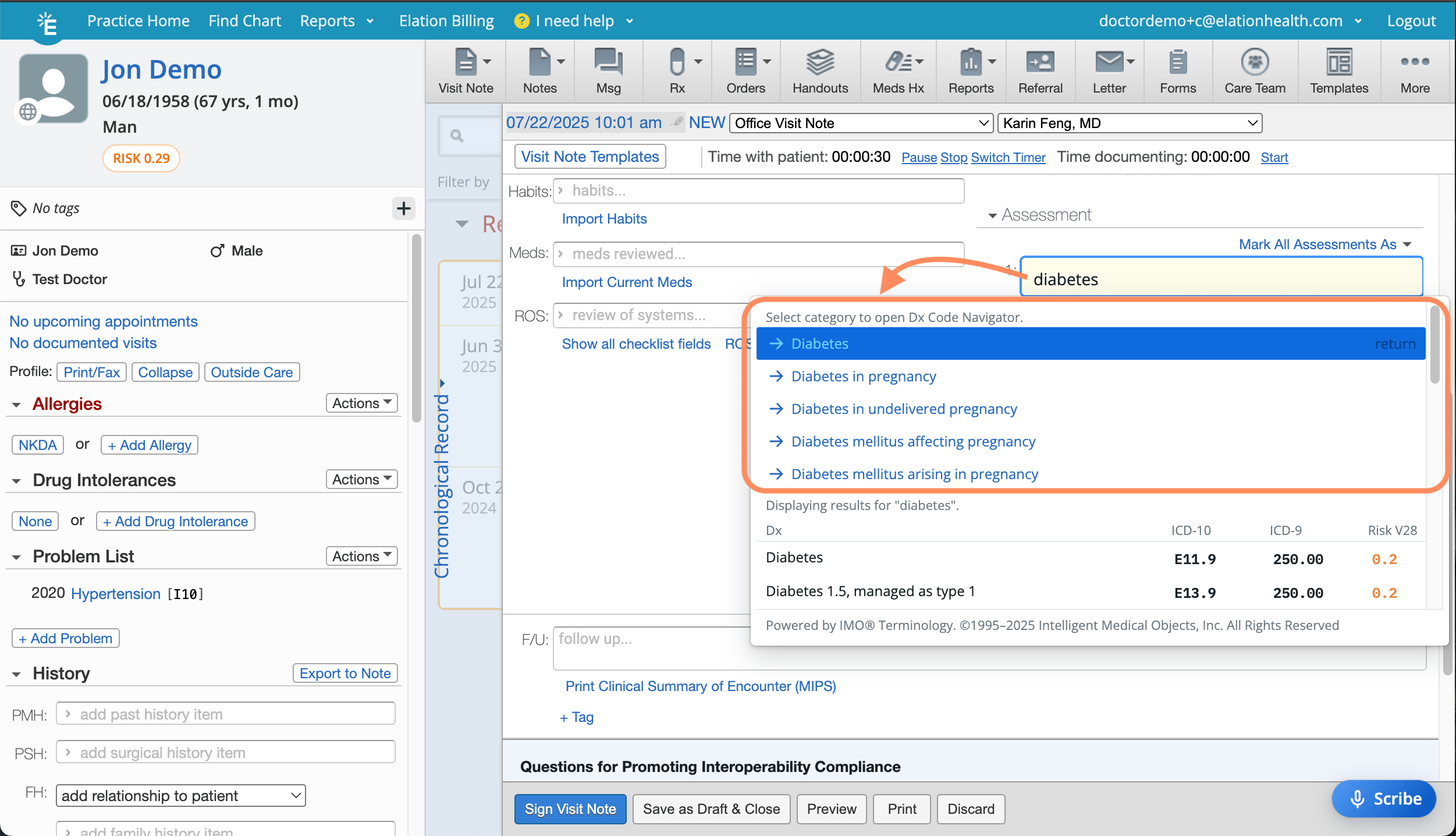 If the code already appears in the basic search results, simply click on it as usual. |
| **3** | Narrow your search by selecting a matching modifier using the radio buttons or by typing additional keywords into the search box.
If the code already appears in the basic search results, simply click on it as usual. |
| **3** | Narrow your search by selecting a matching modifier using the radio buttons or by typing additional keywords into the search box.  As you refine your search, the diagnosis codes listed at the bottom of the Dx Code Navigator automatically narrow to show the most relevant matches. Specific modifiers can also be accessed quickly by selecting options in the left-hand column. |
| **4** | Click on the desired codes in the **Dx Code Navigator** to add them to the visit note. To preview the diagnosis codes that will be added to the note, hover over the ICD-10 code in the search results. A plus sign (**+**) at the end of an ICD-10 code indicates that it’s part of a code combination and must be used with additional related codes.
As you refine your search, the diagnosis codes listed at the bottom of the Dx Code Navigator automatically narrow to show the most relevant matches. Specific modifiers can also be accessed quickly by selecting options in the left-hand column. |
| **4** | Click on the desired codes in the **Dx Code Navigator** to add them to the visit note. To preview the diagnosis codes that will be added to the note, hover over the ICD-10 code in the search results. A plus sign (**+**) at the end of an ICD-10 code indicates that it’s part of a code combination and must be used with additional related codes.  You’ll also see the associated CMS-HCC risk adjustment weight, shown in orange. |
| **5** | The selected code(s) will appear as a single line item in the **Assessment** section, unless you are using the feature that separates primary and secondary codes into individual line items. Click **Add Problem** to add any relevant problems to the Problem List. |
### Using the Dx Code Navigator in the Problem List
| **1** | Go to the **Problem List** and click + Add Problem. |
| ----- | --------------------------------------------------------------------------------------------------------------------------------------------------------------------------------------------------------------------------------------------------------------------------------------------------------------------------------------------------------------------------------------------------------------------------------------- |
| **2** | Enter a keyword to search for the diagnosis code you need. |
| **3** | Matching code categories will appear at the top of the search results. Click on the closest match to open the **Dx Code Navigator**. If the code already appears in the basic search results, simply click on it as usual. |
| **4** | Narrow your search by selecting a matching modifier using the radio buttons or by typing additional keywords into the search box. As you refine your search, the diagnosis codes listed at the bottom of the Dx Code Navigator automatically narrow to show the most relevant matches. Specific modifiers can also be accessed quickly by selecting options in the left-hand column. |
| **5** | Click on the desired codes in the **Dx Code Navigator** to add them to the visit note. To preview the diagnosis codes that will be added to the note, hover over the ICD-10 code in the search results. A plus sign (**+**) at the end of an ICD-10 code indicates that it’s part of a code combination and must be used with additional related codes. You’ll also see the associated CMS-HCC risk adjustment weight, shown in orange. |
| **6** | The selected code(s) will appear as a single line item in the **Problem List**. |
## Related Articles
* [Problem List Guide](/articles/managing-your-problem-list)
* [Risk Assessment Introduction- Risk Assessment Factors (RAF) and Hierarchical Condition Categories (HCC)](/articles/what-is-risk-assessment)
You’ll also see the associated CMS-HCC risk adjustment weight, shown in orange. |
| **5** | The selected code(s) will appear as a single line item in the **Assessment** section, unless you are using the feature that separates primary and secondary codes into individual line items. Click **Add Problem** to add any relevant problems to the Problem List. |
### Using the Dx Code Navigator in the Problem List
| **1** | Go to the **Problem List** and click + Add Problem. |
| ----- | --------------------------------------------------------------------------------------------------------------------------------------------------------------------------------------------------------------------------------------------------------------------------------------------------------------------------------------------------------------------------------------------------------------------------------------- |
| **2** | Enter a keyword to search for the diagnosis code you need. |
| **3** | Matching code categories will appear at the top of the search results. Click on the closest match to open the **Dx Code Navigator**. If the code already appears in the basic search results, simply click on it as usual. |
| **4** | Narrow your search by selecting a matching modifier using the radio buttons or by typing additional keywords into the search box. As you refine your search, the diagnosis codes listed at the bottom of the Dx Code Navigator automatically narrow to show the most relevant matches. Specific modifiers can also be accessed quickly by selecting options in the left-hand column. |
| **5** | Click on the desired codes in the **Dx Code Navigator** to add them to the visit note. To preview the diagnosis codes that will be added to the note, hover over the ICD-10 code in the search results. A plus sign (**+**) at the end of an ICD-10 code indicates that it’s part of a code combination and must be used with additional related codes. You’ll also see the associated CMS-HCC risk adjustment weight, shown in orange. |
| **6** | The selected code(s) will appear as a single line item in the **Problem List**. |
## Related Articles
* [Problem List Guide](/articles/managing-your-problem-list)
* [Risk Assessment Introduction- Risk Assessment Factors (RAF) and Hierarchical Condition Categories (HCC)](/articles/what-is-risk-assessment)