> ## Documentation Index
> Fetch the complete documentation index at: https://help.elationhealth.com/llms.txt
> Use this file to discover all available pages before exploring further.
# Calendar Guide - Checking patients in for their appointment
> This guide will describe the steps you can take to check a patient in for their appointment.
## Overview
### What is patient check-in?
Patient check-in is the process of updating a patient's appointment status when they arrive at your practice. Elation provides several status options—**Checked In**, **In Room**, **In Room - Vitals Taken**, and **With Doctor**—to help you track where patients are throughout their visit.
### Why should I check patients in?
Checking patients in for their appointment allows you to:
* Properly record the patient's journey as they are being seen in your practice
* Trigger actions in Elation, such as a Medication History Download for walk-in patients
* Verify patient demographics upon arrival
* Track patient location if you have multiple triage areas or exam rooms
## Workflow Instructions
### Updating the appointment status
For each appointment in the Calendar, clicking on the colored space in the appointment will display a pop-up box with the patient's appointment status.
#### Verifying demographics with the 'Checked In' status
When you update the **Status** of the appointment to **Checked In**, the patient's demographics will open for you to review the accuracy of the information with the patient upon check-in. If any changes are made, click **Save & Close** to save your changes.
For walk-in patients, the demographics verification will assist with triggering a [Medication History Download](/articles/retrieving-previous-medication-history-for-your-patients) for the patient.
#### Indicating patient location throughout the appointment
The following appointment statuses allow you to record the physical location of the patient throughout their appointment, especially if you have multiple triage areas or exam rooms:
* **In Room**
* **In Room - Vitals Taken**
* **With Doctor**
[Click here for instructions on how to edit your exam rooms](/articles/calendar-and-booking-settings#Exam_Rooms).
### Collecting payment
It is important to collect payment for services rendered from patients when they are in the office with you. Studies show that the chance of collecting from a patient drops almost 20% as soon as the patient leaves the office. We recommend collecting payment from patients upon check-in (or check-out if preferred) using Elation's secure payment collection feature or a method of your own.
Review our [Patient Payments Guide](/articles/using-elation-to-securely-collect-patient-payments) to learn more about the secure patient payment collection feature in Elation.
### Recording payment details
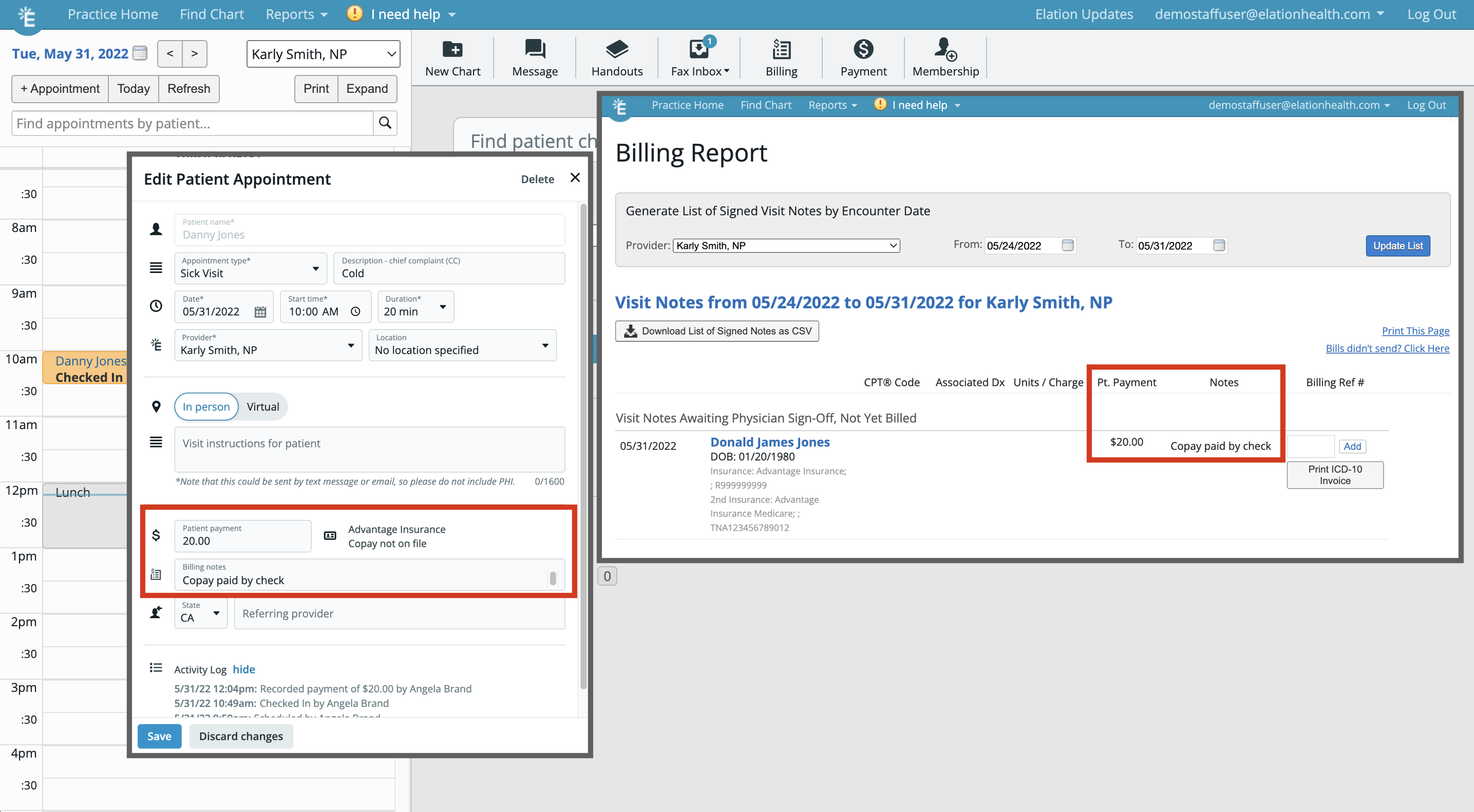
Once you have collected payment information from patients, you can record the payment details in the appointment as one way of sharing the information with your biller.
For customers using the secure payment collection feature, the biller can reference the **Patient Payment Report** under the **Reports** button at the top of Elation to locate patient payment information.
To record payment details in the appointment:
| **1** | Click on the colored space in the appointment. |
| ----- | ----------------------------------------------------------------------------------------------------------------------------------------------------------------- |
| **2** | Click **Edit** to open the **Edit Patient Appointment** box. |
| **3** | Enter any payment collected in the **Patient payment** field and enter any notes related to the payment (e.g., method of payment) in the **Billing notes** field. |
| **4** | Click **Save** to save the payment details. |
When the biller looks at the billing information for that day's visit, they will see the payment information and notes.
 ## Frequently Asked Questions (FAQ)
**Can I use Elation as a kiosk?**
Elation does not currently provide a dedicated kiosk user interface. However, you can simulate the process by doing the following:
* Using **Patient Forms** on a clinic-owned tablet for intake (demographics, questionnaires, consents).
* Manually updating check-in status in the **Calendar**.
* Collecting copays with **Patient Payments**.
For a more robust intake experience with patient self-identification, consider a third-party intake partner such as Updox or IntakeQ. See the [Patient Intake & Check-In Options](/articles/Patient-Intake-Check-In-Options) article for recommended patterns and partner integrations.
## Related Articles
* [Medication History Download Introduction](/articles/retrieving-previous-medication-history-for-your-patients)
* [Patient Payments Guide - Securely collect payments digitally from patients](/articles/using-elation-to-securely-collect-patient-payments)
* [Billing Guide - Creating a Super Bill and coding for your visit](/articles/billing)
* [Calendar and Booking Settings](/articles/calendar-and-booking-settings)
* [Patient Intake & Check-In Options](/articles/Patient-Intake-Check-In-Options)
## Frequently Asked Questions (FAQ)
**Can I use Elation as a kiosk?**
Elation does not currently provide a dedicated kiosk user interface. However, you can simulate the process by doing the following:
* Using **Patient Forms** on a clinic-owned tablet for intake (demographics, questionnaires, consents).
* Manually updating check-in status in the **Calendar**.
* Collecting copays with **Patient Payments**.
For a more robust intake experience with patient self-identification, consider a third-party intake partner such as Updox or IntakeQ. See the [Patient Intake & Check-In Options](/articles/Patient-Intake-Check-In-Options) article for recommended patterns and partner integrations.
## Related Articles
* [Medication History Download Introduction](/articles/retrieving-previous-medication-history-for-your-patients)
* [Patient Payments Guide - Securely collect payments digitally from patients](/articles/using-elation-to-securely-collect-patient-payments)
* [Billing Guide - Creating a Super Bill and coding for your visit](/articles/billing)
* [Calendar and Booking Settings](/articles/calendar-and-booking-settings)
* [Patient Intake & Check-In Options](/articles/Patient-Intake-Check-In-Options)