> ## Documentation Index
> Fetch the complete documentation index at: https://help.elationhealth.com/llms.txt
> Use this file to discover all available pages before exploring further.
# Best Practice- Administering Injectables
> This article will guide you through the best practices for documenting administered injectables in Elation.
## What does it mean to administer injectables?
Injectables are medications that must be administered through a syringe and require qualified medical personnel to administer the medication. Some common examples of injectables are vitamins, antibiotics, and hormones.
Vaccines are not considered an injectable medication. For more information on documenting vaccines in Elation, please reference the [Vaccination Documentation Guide- Managing vaccination information](/articles/Vaccination-Form-Guide) .
## Why is it useful to document administered injectables in Elation?
Documenting administered injectables in Elation is useful because it enables your practice to have a comprehensive and accurate medical record for the patient.
## How to document administered injectables in Elation
Elation recommends two workflows for administering injectables:
* Documenting injectables through the vaccine form
* Documenting injectables in visit notes
* Documenting injectables through the Prescription Form
### Documenting injectables through the vaccine form
We recommend documenting injectables using the vaccine form in Elation because there are structured fields where you can enter necessary information such as manufacturer, lot number, expiration date, and more. Below are instructions for how you can enter injectable information through the vaccine form.
1. Start in a patient's chart and scroll down the Clinical Profile (left hand column of the chart) to the **Other Info** vaccine section
2. Click **+ Add Vaccination** to open the Document Vaccination window
3. Type the name of the injectable into the Vaccine field. You can free text the name of the injectable into the Vaccine field and click into the free space in the Document Vaccination window to save the text you have written.
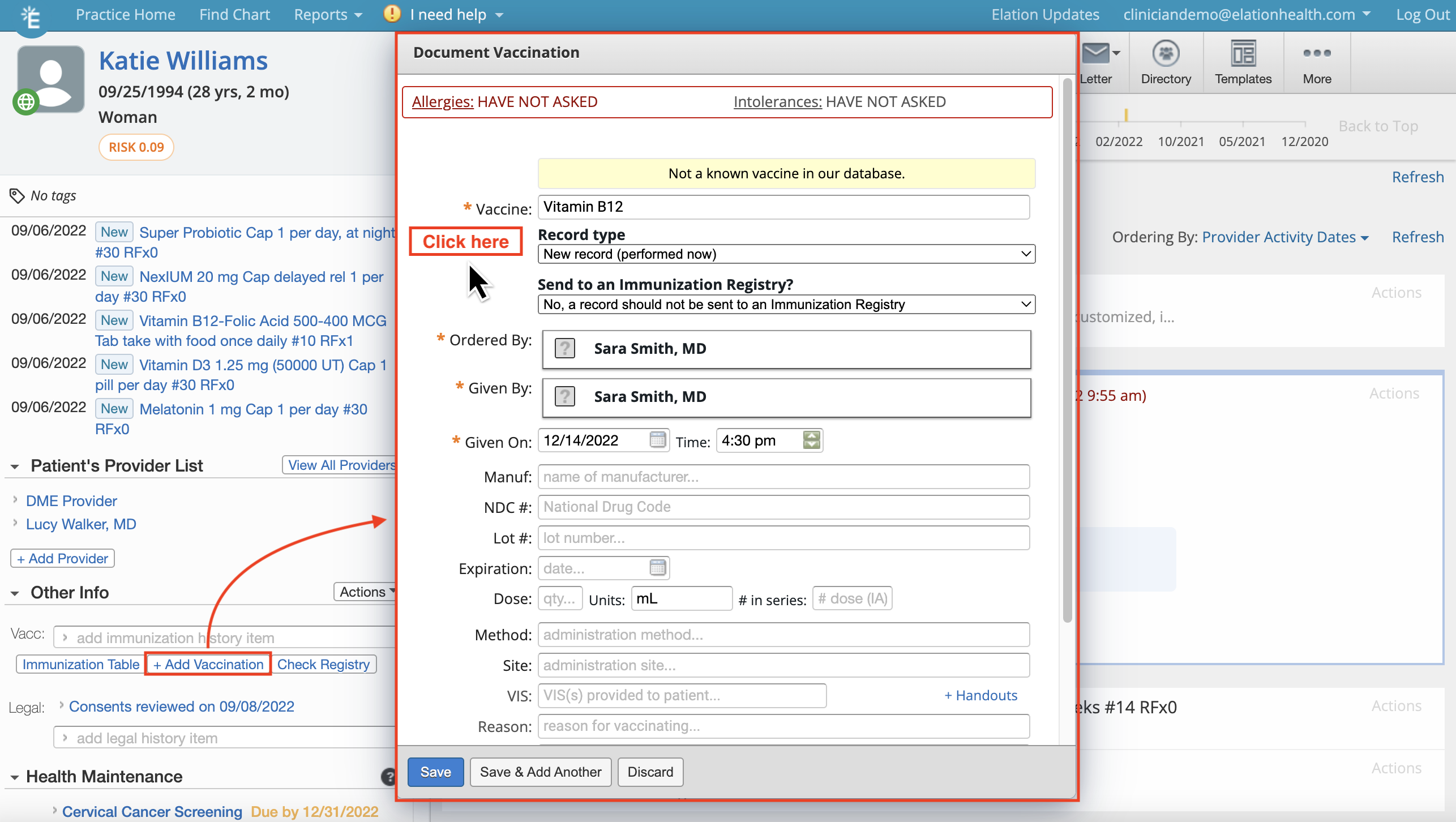 1. Enter additional necessary information such as manufacturer, lot number, expiration date, and more
*
The injectable will be saved as an option for future documentation for your practice after the first time it has been entered for a patient. The manufacturer, lot number, expiration date, and dose will save and auto-populate next time the injectable is chosen.
2. Once the injectable information is completely documented in the form, click one of the **Save** options. The injectable will be documented in the Clinical Profile in the vaccine section.
If your practice is connected to any state immunization registries, you must choose the option to **not send the record** of the injectable to an immunization registry.
1. Enter additional necessary information such as manufacturer, lot number, expiration date, and more
*
The injectable will be saved as an option for future documentation for your practice after the first time it has been entered for a patient. The manufacturer, lot number, expiration date, and dose will save and auto-populate next time the injectable is chosen.
2. Once the injectable information is completely documented in the form, click one of the **Save** options. The injectable will be documented in the Clinical Profile in the vaccine section.
If your practice is connected to any state immunization registries, you must choose the option to **not send the record** of the injectable to an immunization registry.  If you have a visit note open as you are documenting the injectable in the vaccination form, the injectable will be added automatically to the visit note.
You can export a documented injectable from the Clinical Profile at any time to a visit note by clicking **Actions** >> **Export to Note**
If you have a visit note open as you are documenting the injectable in the vaccination form, the injectable will be added automatically to the visit note.
You can export a documented injectable from the Clinical Profile at any time to a visit note by clicking **Actions** >> **Export to Note** 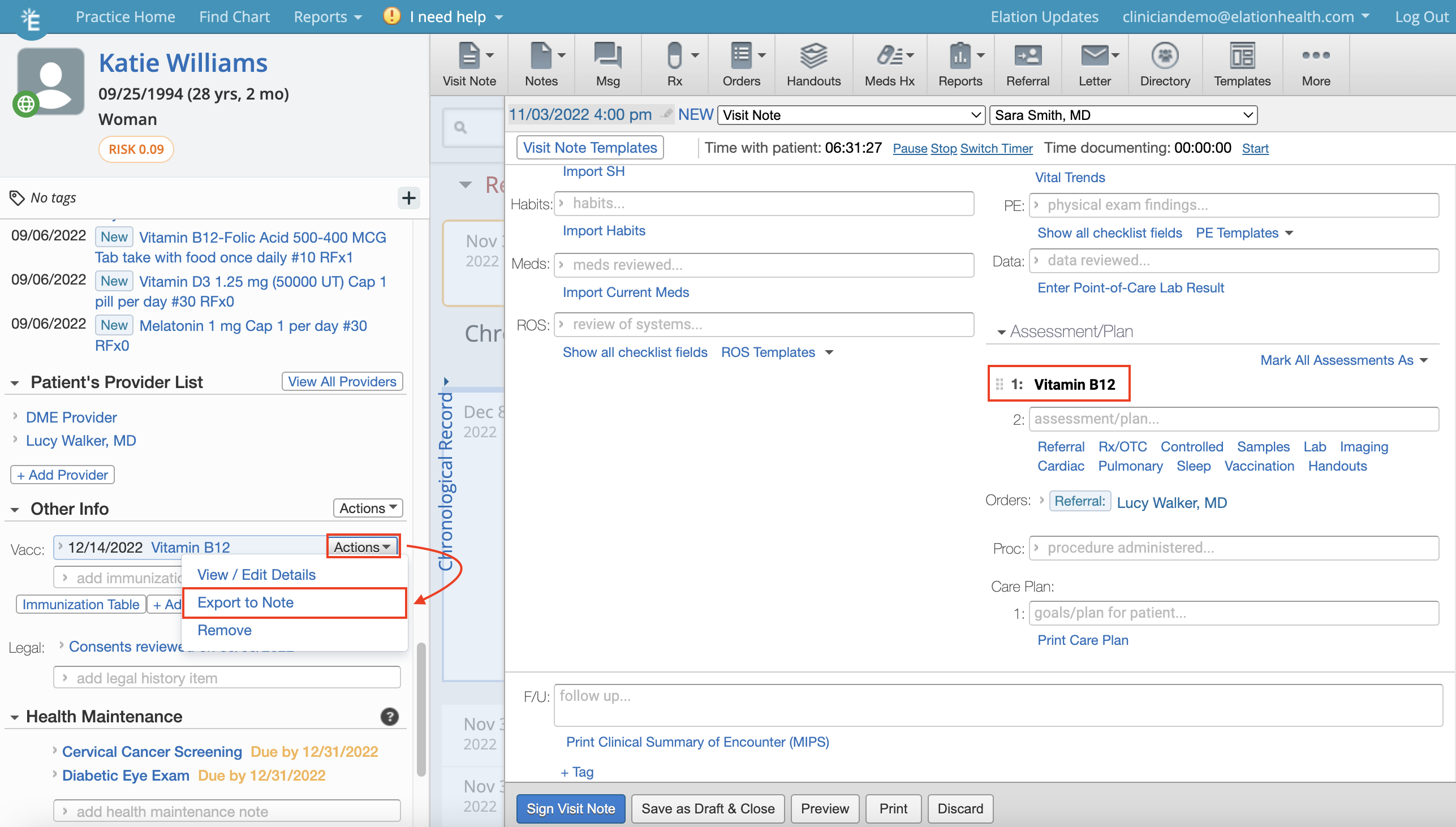 ### Documenting injectables in visit notes
Documenting injectables in visit notes is a great option for practices who prefer to keep vaccines and injectables documentation separate.
1. Start in a patient's chart with an open visit note
2. Document the injectable information into the body of the note
*
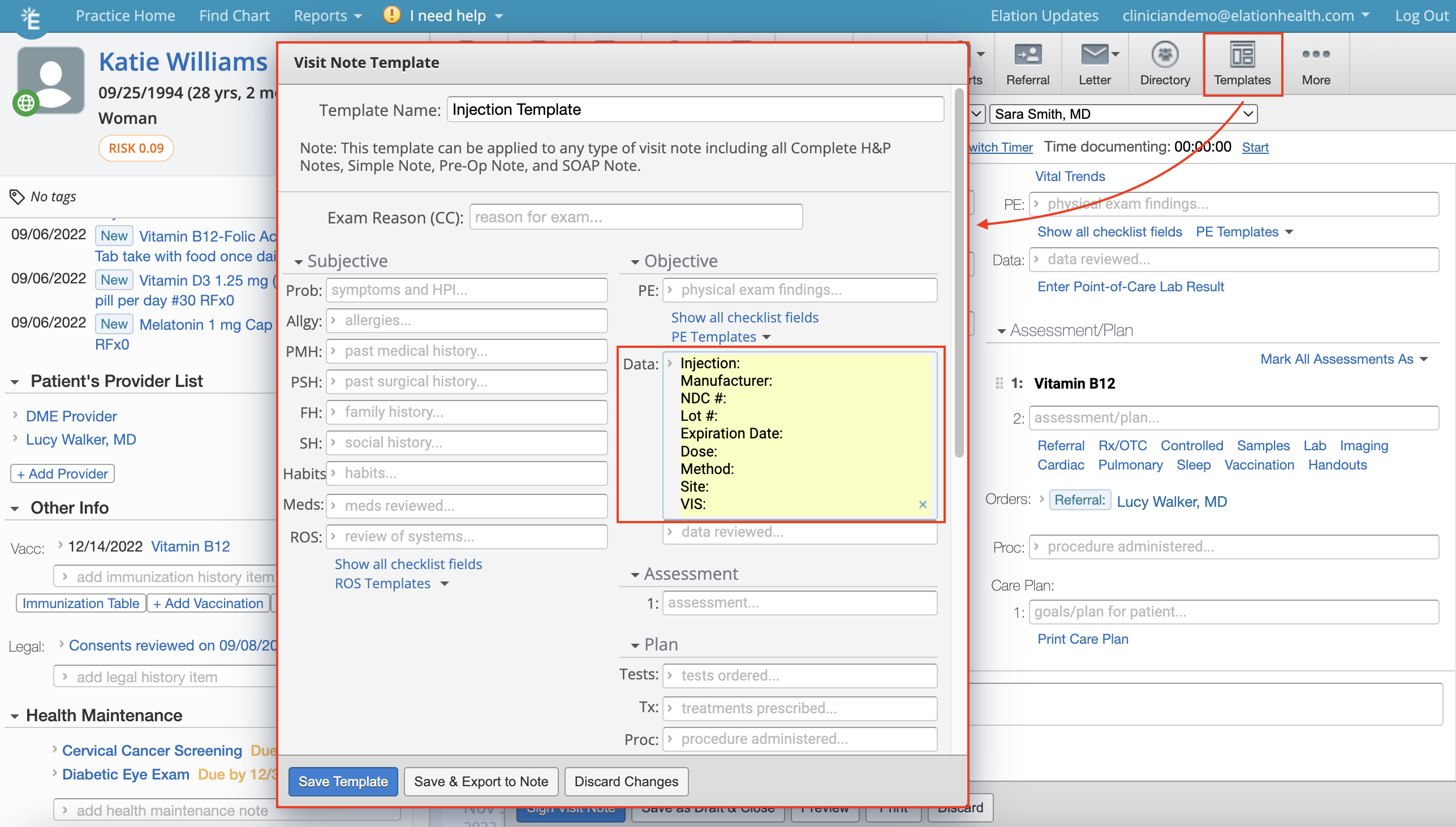
Creating [visit note templates](/articles/elation-visit-note-templates) for injectable administration will streamline this process for your practice. [We recommend creating a template](#template_faq) that will auto-populate the fields that need to be documented for each vaccine, as well as billing codes that are consistently used with injections.
3. Complete the visit note with any additional information pertaining to the visit and sign the note
We recommend using [Document Tags](/articles/tag-reports-and-notes-with-document-tags) to track injections with specific identifiers in case of a recall or other situation where you need a list of patients who received the injection. When the visit notes are tagged with Document Tags, it enables your practice to search in a [Patient List](/articles/find-patients-with-elations-patient-list) for patients with the specific Document Tag.
### Documenting injectables through the Prescription Form
[Click here for instructions on how to document injectables through the Prescription Form](/articles/Documenting-Clinic-Administered-Medications)
.
## Frequently Asked Questions
### What if the injectable I am administering is not available in the vaccine form?
You can free text information into the vaccine form, such as the name of the injectable. Type the name of the injectable into the
**Vaccine**
field and click into the free space in the Document Vaccination window to save the text you have written.
*
The injectable name and additional information will be saved as an option for future documentation for your practice after the first time it has been entered for a patient. The manufacturer, lot number, expiration date, and dose will save and auto-populate next time the injectable is chosen.
### How can I search for patients who have received a specific injectable?
You can tag patient records, such as visit notes, with
[Document Tags](/articles/tag-reports-and-notes-with-document-tags)
that enable your practice to search in a
[Patient List](/articles/find-patients-with-elations-patient-list)
for patients with the specific Document Tag. We recommend including the name of the injectable and the lot number in the tag so that you can pull a list of patients that received that injectable in case of a recall or other similar situations.
### What information is recommended to be included in a visit note template for injectables?
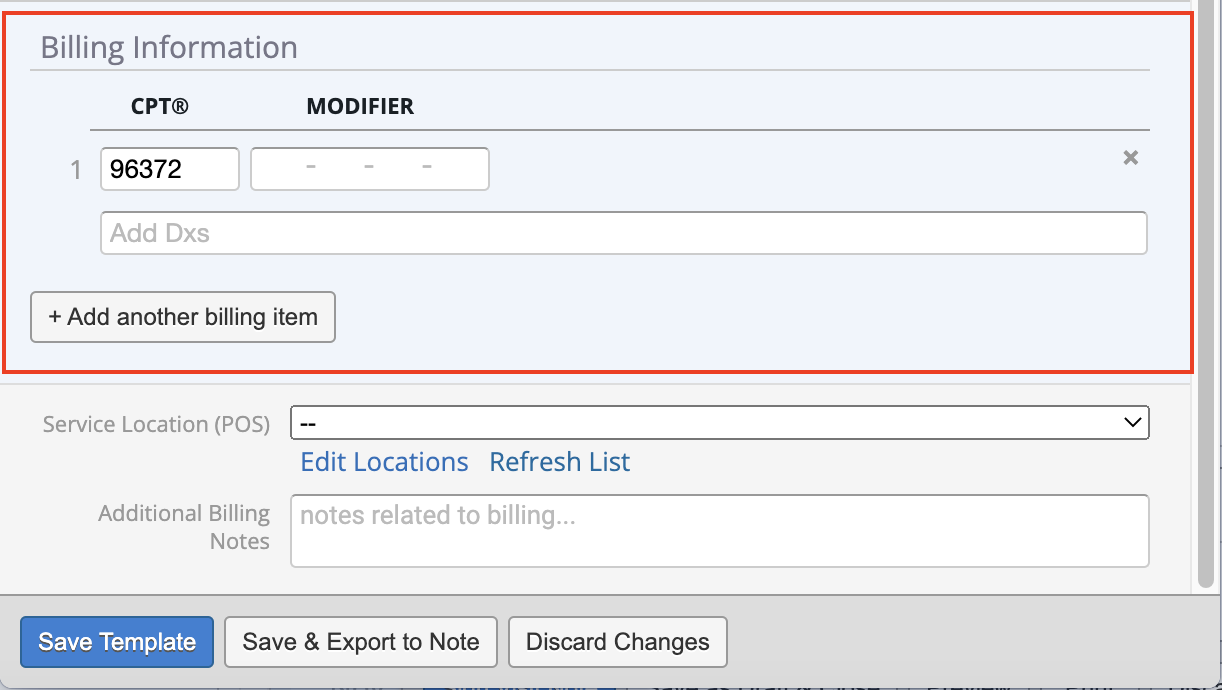
We recommend saving standard injection documentation fields and common CPT codes for billing in visit note templates. The information you can save in a visit note template is very customizable and can save your practice time documenting the information.
The CPT Code,
**96372**
: Injection of drug or substance under skin or into muscle, is commonly used for coding patient encounters that involve injectables. Feel free to
[save this CPT Code to your practice settings](/articles/billing-settings---service-locations--procedure-codes#Where%20do%20I%20find%20the%20Popular%20Procedure%20Codes%20list?)
.
Clinical Information for templates:
### Documenting injectables in visit notes
Documenting injectables in visit notes is a great option for practices who prefer to keep vaccines and injectables documentation separate.
1. Start in a patient's chart with an open visit note
2. Document the injectable information into the body of the note
*
Creating [visit note templates](/articles/elation-visit-note-templates) for injectable administration will streamline this process for your practice. [We recommend creating a template](#template_faq) that will auto-populate the fields that need to be documented for each vaccine, as well as billing codes that are consistently used with injections.
3. Complete the visit note with any additional information pertaining to the visit and sign the note
We recommend using [Document Tags](/articles/tag-reports-and-notes-with-document-tags) to track injections with specific identifiers in case of a recall or other situation where you need a list of patients who received the injection. When the visit notes are tagged with Document Tags, it enables your practice to search in a [Patient List](/articles/find-patients-with-elations-patient-list) for patients with the specific Document Tag.
### Documenting injectables through the Prescription Form
[Click here for instructions on how to document injectables through the Prescription Form](/articles/Documenting-Clinic-Administered-Medications)
.
## Frequently Asked Questions
### What if the injectable I am administering is not available in the vaccine form?
You can free text information into the vaccine form, such as the name of the injectable. Type the name of the injectable into the
**Vaccine**
field and click into the free space in the Document Vaccination window to save the text you have written.
*
The injectable name and additional information will be saved as an option for future documentation for your practice after the first time it has been entered for a patient. The manufacturer, lot number, expiration date, and dose will save and auto-populate next time the injectable is chosen.
### How can I search for patients who have received a specific injectable?
You can tag patient records, such as visit notes, with
[Document Tags](/articles/tag-reports-and-notes-with-document-tags)
that enable your practice to search in a
[Patient List](/articles/find-patients-with-elations-patient-list)
for patients with the specific Document Tag. We recommend including the name of the injectable and the lot number in the tag so that you can pull a list of patients that received that injectable in case of a recall or other similar situations.
### What information is recommended to be included in a visit note template for injectables?
We recommend saving standard injection documentation fields and common CPT codes for billing in visit note templates. The information you can save in a visit note template is very customizable and can save your practice time documenting the information.
The CPT Code,
**96372**
: Injection of drug or substance under skin or into muscle, is commonly used for coding patient encounters that involve injectables. Feel free to
[save this CPT Code to your practice settings](/articles/billing-settings---service-locations--procedure-codes#Where%20do%20I%20find%20the%20Popular%20Procedure%20Codes%20list?)
.
Clinical Information for templates:
 Billing Information section for templates:
 ## Related Articles
* [Vaccination Documentation Guide- Managing vaccination information](/articles/Vaccination-Form-Guide)
* [Visit Note Templates Guide](/articles/elation-visit-note-templates)
* [Prescriptions Guide- Frequently Asked Questions](/articles/Prescriptions-Guide-Frequently-Asked-Questions)
* [Document Tags for Visit Notes & Reports Guide](/articles/tag-reports-and-notes-with-document-tags)
* [Patient List Report Guide- Searching your patient panel](/articles/find-patients-with-elations-patient-list)
* [Billing Guide- Navigating Billing Settings](/articles/billing-settings---service-locations--procedure-codes)
## Related Articles
* [Vaccination Documentation Guide- Managing vaccination information](/articles/Vaccination-Form-Guide)
* [Visit Note Templates Guide](/articles/elation-visit-note-templates)
* [Prescriptions Guide- Frequently Asked Questions](/articles/Prescriptions-Guide-Frequently-Asked-Questions)
* [Document Tags for Visit Notes & Reports Guide](/articles/tag-reports-and-notes-with-document-tags)
* [Patient List Report Guide- Searching your patient panel](/articles/find-patients-with-elations-patient-list)
* [Billing Guide- Navigating Billing Settings](/articles/billing-settings---service-locations--procedure-codes)